
50+ Shortcut Commands of AutoCAD for Architects
Speed up your AutoCAD workflow with 50 essential shortcut commands every architect and designer should know...
By Mr. Tauseefullah Sheikh6 min read
Introduction — Speed, Precision, and Professional AutoCAD Workflow
AutoCAD is the digital language of architecture, engineering, and construction in Pakistan and worldwide. Whether you are a DAE Architecture student, a B.Arch undergraduate, a civil draftsman, or a freelance designer, your productivity inside AutoCAD in 2025 defines how far you can go professionally.
Many beginners rely heavily on toolbars, icons, and mouse clicks. While this works initially, it quickly becomes a bottleneck on real projects with tight deadlines. Professionals do not work this way — they communicate with AutoCAD using keyboard shortcut commands: fast, precise instructions that eliminate unnecessary steps and multiply output.
This guide covers 50+ essential AutoCAD shortcut commands grouped logically by category — drawing, modifying, dimensioning, layers, navigation, 3D, and more. By the end you will understand not just what shortcuts exist, but why they matter and how to build them into a professional workflow.
50+
Essential Shortcuts
9
Command Categories
40%+
Speed Improvement
Why AutoCAD Shortcuts Matter in Real Projects
AutoCAD shortcut commands are keyboard-based instructions that execute actions instantly. Typing L and pressing Enter launches the Line command in under a second — compared to 3–5 clicks through menus. That difference compounds over hundreds of actions per drawing session.
Speed
Reduce drawing time by 40–60% in real project environments.
Accuracy
Less mouse movement means fewer accidental misclicks and geometry errors.
Professionalism
Industry-standard workflow expected by architectural firms and engineering offices.
Career Value
Shortcut-fluent designers command higher salaries and get promoted faster.
In architectural offices across Lahore, Karachi, and Islamabad, deadlines are tight and competition is fierce. Designers who rely on shortcuts complete more drawings, revisions, and layout sheets — making them invaluable team members from day one.
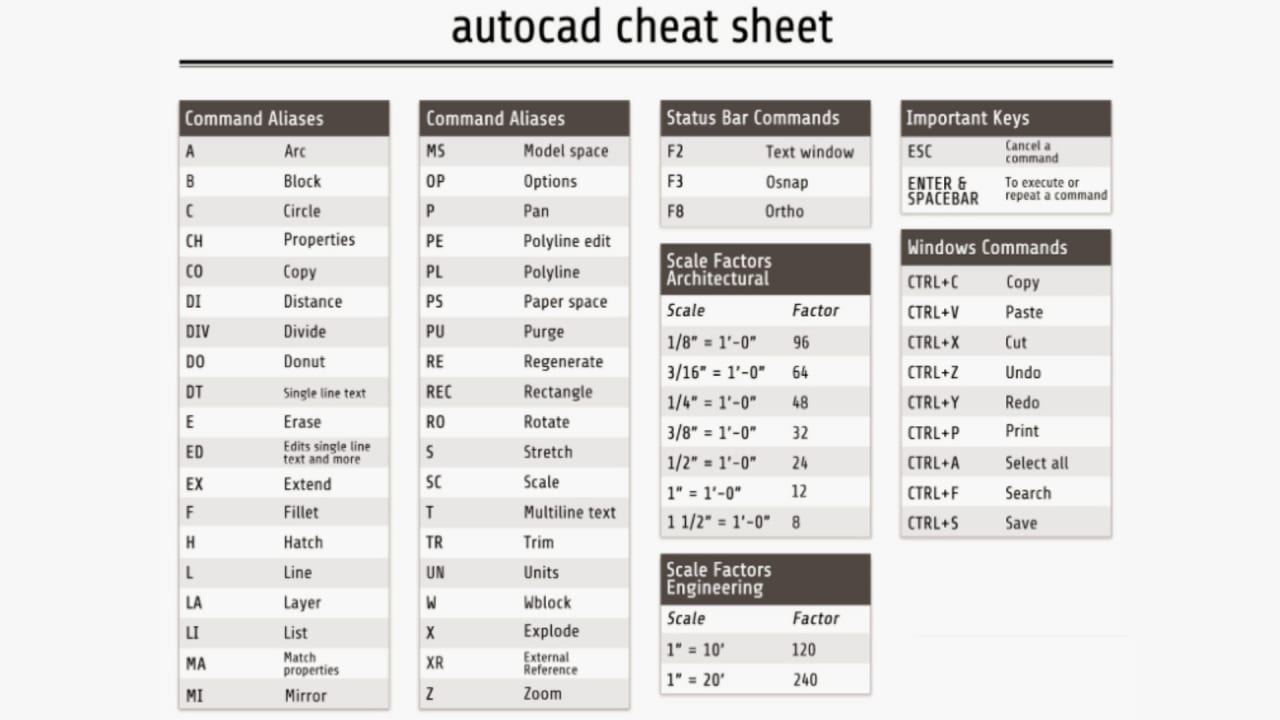
A. Basic Drawing Commands — Foundation of Every Floor Plan
These commands form the backbone of every AutoCAD drawing — from architectural floor plans to furniture layouts. Mastering these shortcuts ensures clean, accurate, and fast drafting.
L
Line
Draw straight lines between any two points. The single most-used command in every architectural drawing.
C
Circle
Create circles using center point and radius. Essential for columns, pipes, and fixtures.
REC
Rectangle
Draw rectangles with two corner points — the fastest way to draft rooms and walls.
A
Arc
Create curved segments for doors, windows, and organic forms.
POL
Polygon
Draw regular polygons (3–1024 sides) for structural and decorative elements.
EL
Ellipse
Oval and elliptical shapes for site plans and landscape elements.
SPL
Spline
Smooth freeform curves — ideal for contour lines and organic landscape paths.
H
Hatch
Apply material fills (brick, concrete, soil) or section patterns.
T
Text
Single-line annotations and labels.
MT
MText
Paragraph-based multi-line text for notes and specifications.
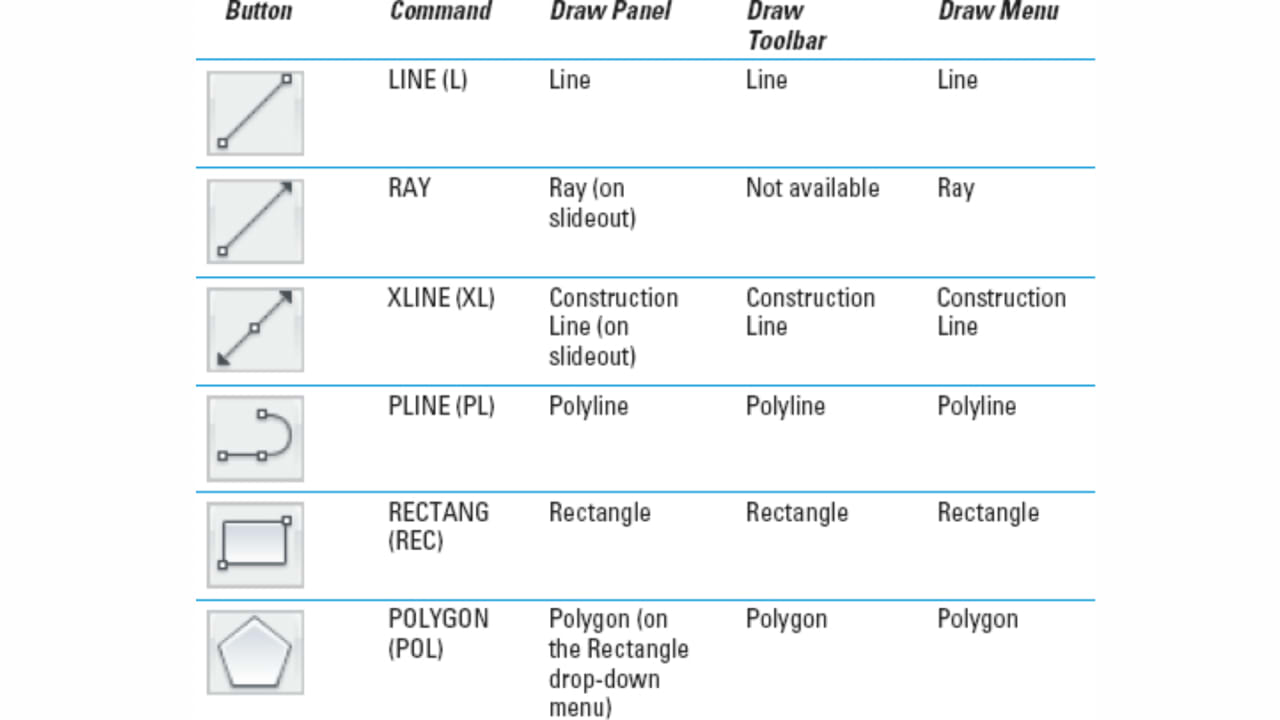
B. Modify Commands — Edit and Refine Without Redrawing
No drawing is perfect on the first attempt. Modify commands let you edit, refine, and optimise geometry without starting from scratch — saving hours on every project.
E
Erase
Delete selected objects. Use with selection filters for targeted cleanup.
CO
Copy
Duplicate objects at a specified offset — faster than re-drawing repeated elements.
M
Move
Relocate objects precisely using coordinate input.
RO
Rotate
Rotate objects around a base point by a specified angle.
MI
Mirror
Create a mirror image along an axis — essential for symmetrical plans.
O
Offset
Create a parallel copy at a specified distance. The most-used command for wall thickness.
TR
Trim
Trim lines at intersections — critical for clean wall junctions.
EX
Extend
Extend lines to a boundary edge.
F
Fillet
Round corners with a specified radius.
CHA
Chamfer
Angled corner cuts for structural and furniture details.
SC
Scale
Resize objects proportionally from a base point.
AR
Array
Repeat objects in rectangular, polar, or path patterns — perfect for columns and stairs.
C. Dimensioning & Annotation — Communicate Scale and Intent
Drawings without dimensions are incomplete. These commands convey exact measurements, angles, and notes to engineers, contractors, and clients.
D
Dimstyle
Open the Dimension Style Manager to set up drawing standards.
DIMLIN
Linear Dim
Horizontal or vertical dimension between two points.
DIMAL
Aligned
Dimension along an angled line — for sloped walls and ramps.
DIMA
Angular
Measure and annotate angles.
DIMR
Radius
Radius dimension for arcs and circles.
DIMDIA
Diameter
Diameter notation for circular elements.
LE
Leader
Annotate with a pointer arrow — for material callouts.
ST
Text Style
Manage fonts, heights, and annotation styles.
D. Layer & Properties — Professional Drawing Organisation
Layer management separates professional drawings from amateur ones. Proper layers allow you to control visibility, plotting, and editing of every element independently.
LA
Layer
Open the Layer Properties Manager — create, rename, and organise layers.
CH
Change Props
Change the properties (layer, colour, linetype) of selected objects.
MA
Match Props
Copy properties from one object to another — the 'format painter' of AutoCAD.
PR
Properties
Open the Properties palette for detailed object editing.
QSELECT
Quick Select
Select all objects sharing a specific property (e.g. all objects on Layer 'WALLS').
F. Selection & Object Snapping — Precision at Every Click
Object snaps (OSNAPs) are what make AutoCAD accurate. Without snapping, coordinates are guesswork. With it, every point lands exactly where it should.
OS
Osnap
Open Object Snap Settings to toggle endpoints, midpoints, centres, etc.
F3
Toggle Osnap
Turn object snapping on/off instantly.
F8
Ortho
Constrain drawing to horizontal and vertical only.
F10
Polar Track
Snap to angular increments (15°, 30°, 45°, etc.).
CTRL+A
Select All
Select every object in the current space.
G. Blocks & Groups — Reuse and Organise Drawing Components
Blocks are the foundation of efficient architectural libraries. Doors, windows, furniture, and fixtures are all stored as blocks to avoid redrawing.
B
Block
Create a new block definition from selected objects.
I
Insert
Insert a block into the drawing at any scale and rotation.
W
WBlock
Write a block to a separate .DWG file for sharing.
G
Group
Group objects loosely — unlike blocks, groups can be edited without exploding.
X
Explode
Break a block or polyline into its individual components.
H. File & Utility Commands — Save, Purge, and Audit
These commands keep files clean, recoverable, and submission-ready. Purging unused objects and auditing file health are professional habits every draughtsman should maintain.
CTRL+S
Save
Save the current drawing. Do this every 10 minutes — no exceptions.
CTRL+Z
Undo
Undo the last action.
CTRL+Y
Redo
Redo the last undone action.
PURGE
Purge
Remove unused blocks, layers, linetypes, and styles — reduces file size dramatically.
AUDIT
Audit
Check and fix drawing file errors.
RECOVER
Recover
Attempt to open and fix a corrupted drawing file.
PLOT
Plot
Open the print/plot dialog for final output.
I. 3D Modeling Commands — From 2D Plans to 3D Volumes
3D modeling in AutoCAD is increasingly expected in architectural presentations. These commands help you build massing models and volumetric studies from your 2D drawings.
BOX
Box
Create a 3D rectangular solid — the starting point for building massing.
CYL
Cylinder
3D cylinder for columns and structural elements.
EXT
Extrude
Push a 2D profile into a 3D solid — the most-used 3D command in architecture.
UNI
Union
Combine two solids into one.
SU
Subtract
Cut one solid from another — for openings, voids, and penetrations.
HIDE
Hide
Display a hidden-line view of a 3D model.
RENDER
Render
Generate a rendered view of the 3D model.
Function Keys Reference — The Hidden Shortcuts on Your Keyboard
Function keys toggle essential AutoCAD modes instantly — no typing required. Most students ignore these; professionals use them constantly.
| Key | Action | Notes |
|---|---|---|
| F1 | Help | Opens AutoCAD help documentation |
| F2 | Text Screen Toggle | Show/hide the command history window |
| F3 | Object Snap ON/OFF | Most-used toggle in daily draughting |
| F4 | 3D Osnap Toggle | For 3D drawing workflows |
| F5 | Isoplane Toggle | Switch between isometric drawing planes |
| F6 | Dynamic UCS | Automatically align UCS to 3D surfaces |
| F7 | Grid ON/OFF | Toggle visual reference grid |
| F8 | Ortho Mode ON/OFF | Constrain to 90° — essential for rectilinear plans |
| F9 | Snap Mode ON/OFF | Lock cursor to grid snap intervals |
| F10 | Polar Tracking ON/OFF | Snap to angular increments |
| F11 | Object Snap Tracking | Track along projected snap paths |
| F12 | Dynamic Input ON/OFF | Show/hide the on-cursor input box |
Speed Gains — How Shortcut Fluency Grows Over Time
Estimated drafting efficiency (% of maximum speed) at different stages of shortcut mastery. Actual improvements vary by project complexity and discipline.
Drafting efficiency vs. shortcut fluency level
Mouse-only beginner30%
Toolbar user (6 months)50%
Shortcut user (beginner)65%
Shortcut user (1 year)82%
Fluent shortcuts (2+ yrs)95%
Mastery Tips for DAE and B.Arch Students in Pakistan
How to build shortcut habits that stick
- Learn 3 new shortcuts per week — not 30 in one day. Space repetition builds muscle memory.
- Disable your mouse for 20 minutes daily — force yourself to use only keyboard shortcuts. Uncomfortable at first; transformative within a month.
- Print the function key table above and tape it above your monitor until it is memorised.
- Create a custom CUI (Custom User Interface) in AutoCAD to bind your most-used commands to even shorter aliases.
- Use Polar Tracking (F10) and Ortho (F8) consistently — never draw a straight line by eye.
Common mistakes students make with AutoCAD shortcuts
- Pressing Esc too aggressively — this cancels active commands mid-operation.
- Forgetting to press Enter or Space to confirm commands — both work identically in AutoCAD.
- Ignoring layer management — drawing everything on Layer 0 creates unmanageable files that no professional office will accept.
- Never using PURGE — bloated files with hundreds of unused blocks and styles are a beginner tell.
Pro tip: In AutoCAD, pressing Space repeats the last command. After drawing a line, pressing Space immediately re-activates the Line command. This single habit alone can cut your drawing time by 10–15%.
Career Relevance — Why Shortcuts Define Professionals in Pakistan
Employers in Pakistan's architecture and construction sector do not just ask what software you know — they observe how efficiently you work during practical tests. Candidates who navigate AutoCAD fluently with shortcuts stand out immediately in interviews at firms in Lahore, Karachi, and Islamabad.
Architecture & Design Firms
- Produce more layout sheets per deadline
- Handle design revisions in minutes, not hours
- Manage complex multi-layer drawing sets
- Collaborate on shared DWG files cleanly
Construction & Engineering Offices
- Produce shop drawings and as-built plans efficiently
- Create structural and services drawing sets
- Work with BIM-integrated AutoCAD workflows
- Meet Gulf project standards (Saudi, UAE, Qatar)
Whether you are freelancing on platforms like Upwork or working in-house at a Pakistani AEC firm, speed equals value. Mastery of AutoCAD shortcuts directly impacts your earning potential, promotion timeline, and client satisfaction.
Should You Memorise These Shortcuts?
Answer these questions honestly to understand exactly how much shortcut fluency matters for your specific situation.
Q1: Are you studying DAE Architecture or B.Arch, or working as a professional draftsman?
→ Yes:
Yes — shortcuts are non-negotiable. Every assessment and employer test rewards speed.
→ No / Not yet:
You use AutoCAD occasionally for personal projects — learn the top 20 and expand gradually.
Q2: Do you want to work in Gulf countries (UAE, Saudi Arabia, Qatar) as a CAD operator?
→ Yes:
Gulf employers expect fluent AutoCAD operators. Shortcut mastery is a baseline requirement.
→ No / Not yet:
Domestic Pakistani projects are more forgiving — but shortcuts still separate you from the crowd.
Q3: Are you aiming for freelance CAD work alongside your studies?
→ Yes:
Freelance clients pay per drawing, not per hour — faster output = more income per session.
→ No / Not yet:
Focus on the drawing commands and modify section first; expand to 3D and utilities later.
Bottom line: If you use AutoCAD more than twice a week, shortcut fluency is one of the highest-return skills you can develop. Start with L, C, REC, O, TR, E, M, CO — the core eight that cover 80% of all drafting tasks — and build from there.
Frequently Asked Questions (FAQs)
- Is AutoCAD difficult to learn?
- AutoCAD is not difficult to learn if you start with basic 2D drafting and practice regularly. Most students become comfortable within 2 to 3 months by learning essential commands and shortcuts.
- What are AutoCAD shortcut commands?
- AutoCAD shortcut commands are keyboard inputs that allow users to quickly perform drawing, modifying, and navigation tasks without using menus or toolbars.
- Why are AutoCAD shortcuts important for architecture students?
- AutoCAD shortcuts help architecture students work faster, improve accuracy, and follow professional drafting standards used in architectural and engineering firms.
- Which AutoCAD shortcuts should beginners learn first?
- Beginners should start with essential shortcuts such as Line (L), Circle (C), Rectangle (REC), Move (M), Copy (CO), Offset (O), Trim (TR), Zoom (Z), and Layer Manager (LA).
- How long does it take to master AutoCAD shortcuts?
- Basic AutoCAD shortcuts can be learned in one to two weeks, while mastery develops over time with daily practice and real project work.
- Can AutoCAD shortcuts be customized?
- Yes, AutoCAD allows users to customize shortcut commands by editing command aliases, enabling a faster and more personalized workflow.
- What is the shorcut command of Line in AutoCAD?
- The shorcut command of Line is l + enter.
- Do AutoCAD shortcuts work in all versions of AutoCAD?
- Most core AutoCAD shortcuts work across all versions of AutoCAD. Fundamental commands like L, C, O, and TR remain consistent even in newer releases.
- Are AutoCAD shortcuts useful for professional jobs?
- Yes, professional drafting jobs require speed and efficiency. Employers prefer AutoCAD users who can work fluently using shortcut commands.
- Do AutoCAD shortcuts help in 3D modeling?
- AutoCAD shortcuts are also useful in 3D modeling. Commands like EXTRUDE, PRESSPULL, UNION, SUBTRACT, and 3DORBIT speed up 3D design workflows.
Conclusion — From Commands to Confidence
AutoCAD shortcuts are not just technical facts to memorise — they are habits. The more consistently you apply them, the more natural they become. Every professional architect and draftsman in Pakistan started exactly where you are now.
Commit to learning three shortcuts per week, apply them on every drawing you open, and within three months your workflow will be unrecognisable — faster, cleaner, and genuinely professional.
The drafting table of 2025 is digital. Master the language of AutoCAD and you will always have a place at it.
Looking for more architecture resources? Browse all articles or explore our DAE study resources.
Written by
Mr. Tauseefullah Sheikh
Mr. Tauseefullah Sheikh has 6 years of experience as an AutoCAD trainer, specializing in mechanical and architectural drafting. He focuses on enhancing learners’ technical accuracy and efficiency.