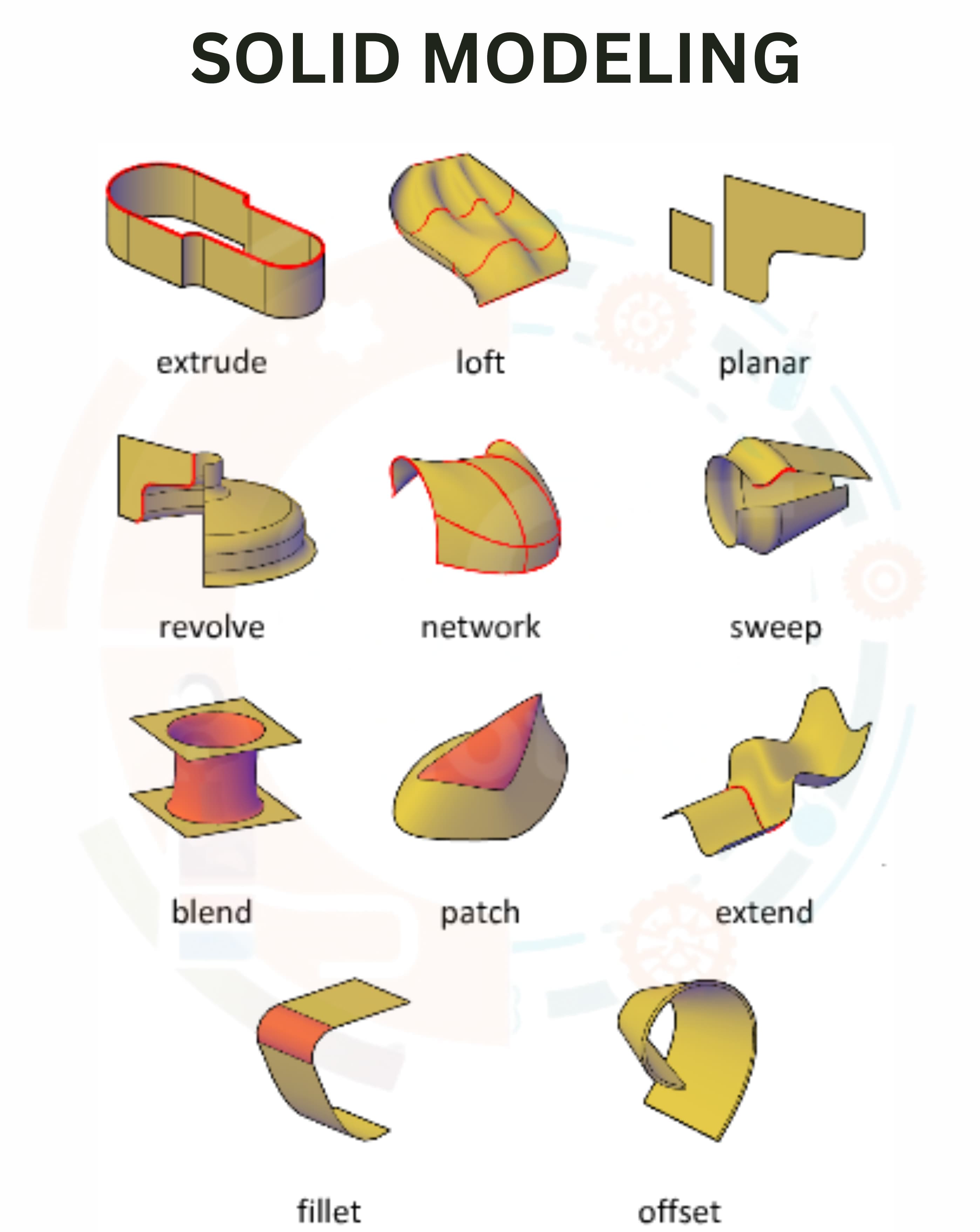
SOLID MODELING
Other Chapters
INTRODUCTION TO 2D AND 3D CAD2D SKETCHES (ASTM STANDARDS)DIMENSIONS AND CONSTRAINTS (ASTM STANDARDS)TOLERANCES (ASTM STANDARDS)SOLID MODELINGASSEMBLY MODELINGDRAWING VIEWPRESENTATION MODULESHEAR METAL COMPONENTSCAM (COMPUTER AIDED MANUFACTURING)PROCESS PLANNING
- Q1: Define Modeling Tools in Solidworks.Ans: Modeling tools in Solidworks are features and commands used to create, modify, and manipulate 3D geometry.
- Q2: Define Extruded Feature in Solidworks.Ans: An Extruded Feature is a 3D shape created by extending a 2D sketch along a straight path.
- Q3: Define Sketch Plane in Solidworks.Ans: A Sketch Plane is a flat surface on which 2D sketches are drawn to build 3D features.
- Q4: Define Vertex in Solidworks.Ans: A Vertex is a point where two or more edges meet in a 3D model.
- Q5: Define Offset in Solidworks.Ans: Offset creates a copy of a sketch entity at a specified distance from the original.
- Q6: Define End Condition in Solidworks.Ans: End Condition defines how far a feature like Extrude or Cut will extend.
- Q7: Define Blind in Solidworks.Ans: Blind is an end condition where the feature extends a specific distance in one direction.
- Q8: Define Mid Plane in Solidworks.Ans: Mid Plane is an end condition where the feature extends equally in both directions from the sketch plane.
- Q9: Define Reverse Direction button in Solidworks.Ans: The Reverse Direction button changes the direction of extrusion or feature creation.
- Q10: Define Direction of Extrusion in Solidworks.Ans: Direction of Extrusion determines the path along which the sketch is extended to form a 3D feature.
- Q11: Define Draft On/Off button in Solidworks.Ans: The Draft On/Off button adds or removes a taper angle to a feature.
- Q12: Define Cap Ends in Solidworks.Ans: Cap Ends is used to close the open ends of a feature like a sweep or loft.
- Q13: Define Contour in Solidworks.Ans: A Contour is a closed sketch shape that can be used to create a feature.
- Q14: What is the Revolved feature in Solidworks?Ans: A Revolved Feature creates a 3D shape by rotating a 2D sketch around an axis.
- Q15: How to create a Revolved feature in Solidworks?Ans: The steps to create a Revolved Feature are as follows:
- ➔ Draw a 2D sketch on a plane.
- ➔ Define an axis of revolution.
- ➔ Use the Revolve Boss/Base feature.
- ➔ Set the angle of revolution.
- ➔ Confirm to generate the 3D shape.
- Q16: What is the Axis of Revolution in Solidworks?Ans: The Axis of Revolution is a line around which a sketch rotates to create a revolved feature.
- Q17: What is the Holes feature in Solidworks?Ans: Holes feature allows you to create different types of holes like simple, counterbore, countersink, and tapped holes.
- Q18: What is the Fillets feature in Solidworks?Ans: Fillets create smooth, rounded edges between faces or along edges of a 3D model.
- Q19: How to create a Constant Radius Fillet in Solidworks?Ans: The steps to create a Constant Radius Fillet are as follows:
- ➔ Select the edge or face.
- ➔ Click Fillet from the Features toolbar.
- ➔ Enter the radius value.
- ➔ Apply to generate the rounded edge.
- Q20: How to create a Variable Radius Fillet in Solidworks?Ans: The steps to create a Variable Radius Fillet are as follows:
- ➔ Select the edge to fillet.
- ➔ Choose Fillet and select Variable Radius option.
- ➔ Set different radius values at multiple points along the edge.
- ➔ Apply to generate the fillet.
- Q21: How to create a Face Radius Fillet in Solidworks?Ans: The steps to create a Face Fillet are as follows:
- ➔ Select the face(s) to fillet.
- ➔ Click on Fillet and choose Face Fillet option.
- ➔ Set radius and preview.
- ➔ Apply to create the fillet.
- Q22: How to create a Full Round Radius Fillet in Solidworks?Ans: The steps to create a Full Round Fillet are as follows:
- ➔ Select three faces forming a corner.
- ➔ Choose Full Round Fillet from Fillet options.
- ➔ Apply to create a smooth full round edge.
- Q23: What are Chamfer features in Solidworks?Ans: Chamfer features create a straight angled edge between two faces instead of rounding it.
- Q24: What are Ribs features in Solidworks?Ans: Ribs are thin support structures added to strengthen parts without adding much weight.
- Q25: How to create a Rib in Solidworks?Ans: The steps to create a Rib are as follows:
- ➔ Draw the rib sketch on a plane.
- ➔ Select Rib feature from Features toolbar.
- ➔ Set thickness and direction.
- ➔ Apply to generate the rib.
- Q26: How to thicken a surface in Solidworks?Ans: The steps to thicken a surface are as follows:
- ➔ Select the surface to thicken.
- ➔ Click on Thicken feature.
- ➔ Enter the thickness value.
- ➔ Apply to create a solid body from the surface.
- Q27: Write the procedure for editing a feature in Solidworks?Ans: The steps to edit a feature are as follows:
- ➔ Right-click the feature in the FeatureManager.
- ➔ Select Edit Feature.
- ➔ Change the parameters or options.
- ➔ Confirm to update the model.
- Q28: Write the procedure for editing the sketch of a feature in Solidworks?Ans: The steps to edit a sketch are as follows:
- ➔ Right-click the sketch in FeatureManager.
- ➔ Select Edit Sketch.
- ➔ Modify sketch entities or dimensions.
- ➔ Exit sketch to update the feature.
- Q29: What are Advance Modeling Tools in Solidworks?Ans: Advanced modeling tools are features like Sweep, Loft, Boundary, and Surface modeling used for complex shapes.
- Q30: Define Sweep Feature in Solidworks?Ans: Sweep feature creates a 3D shape by moving a profile along a path or guide curve.
- Q31: Write the procedure for creating a sweep feature with a sketch profile in Solidworks?Ans: The steps to create a Sweep with sketch are as follows:
- ➔ Draw the profile sketch and path sketch.
- ➔ Click Sweep Boss/Base.
- ➔ Select the profile and path.
- ➔ Apply to generate the 3D shape.
- Q32: Write the procedure for creating a sweep feature with a circular profile in Solidworks?Ans: The steps to create a Sweep with circular profile are as follows:
- ➔ Draw the path sketch.
- ➔ Click Sweep Boss/Base and select Circular Profile option.
- ➔ Enter radius for circular profile.
- ➔ Apply to generate the sweep.
- Q33: Write the procedure for creating a sweep feature with One Guide Curve in Solidworks?Ans: Steps for Sweep with one guide curve are as follows:
- ➔ Draw profile, path, and guide curve sketches.
- ➔ Click Sweep Boss/Base.
- ➔ Select profile, path, and guide curve.
- ➔ Apply to create sweep.
- Q34: Write the procedure for creating a sweep feature with Two Guide Curves in Solidworks?Ans: Steps for Sweep with two guide curves are as follows:
- ➔ Draw profile, path, and two guide curves sketches.
- ➔ Click Sweep Boss/Base.
- ➔ Select profile, path, and both guide curves.
- ➔ Apply to generate the sweep.
- Q35: Write the procedure for creating a Twisted sweep feature in Solidworks?Ans: The steps to create a Twisted Sweep are as follows:
- ➔ Draw profile and path sketches.
- ➔ Click Sweep Boss/Base.
- ➔ Select Twist Along Path option.
- ➔ Set twist angle and apply.
- Q36: Define Lofted Feature in Solidworks?Ans: Lofted Feature creates a smooth shape by blending multiple profiles along a guide path.
- Q37: Define Coil Feature in Solidworks?Ans: Coil Feature creates a helical or spiral shape, like springs.
- Q38: Define Thread Feature in Solidworks?Ans: Thread Feature creates internal or external threads on cylindrical or conical surfaces.
- Q39: Write the procedure for creating a Thread in Solidworks?Ans: The steps to create a Thread are as follows:
- ➔ Select cylindrical face.
- ➔ Click Thread feature from Features toolbar.
- ➔ Set thread type, size, and start position.
- ➔ Apply to generate thread.
- Q40: Define Shell Feature in Solidworks?Ans: Shell Feature hollows out a solid body, leaving a uniform wall thickness.
- Q41: Define Draft Feature in Solidworks?Ans: Draft Feature adds a taper to faces, useful for molded or cast parts.
- Q42: Define Knit Surface Feature in Solidworks?Ans: Knit Surface Feature combines multiple surfaces into a single surface body.
- Q43: Define Boundary Feature in Solidworks?Ans: Boundary Feature creates complex 3D shapes by defining profiles and tangency conditions in two directions.
- Q44: What is the procedure for creating boundaries in Solidworks?Ans: The steps to create Boundaries are as follows:
- ➔ Draw two or more profile sketches.
- ➔ Click Boundary Boss/Base.
- ➔ Select profiles and guide curves as needed.
- ➔ Set tangency or curvature options.
- ➔ Apply to generate the shape.
- Q45: Define Sculpt Feature in Solidworks?Ans: Sculpt Feature creates complex 3D forms by manipulating surface and solid geometry in a flexible environment.
- Q46: Define Fillet.Ans: Fillet rounds the edges of a part to create smooth transitions between faces.
- Q47: Define Chamfer.Ans: Chamfer creates a straight, angled edge instead of rounding it.