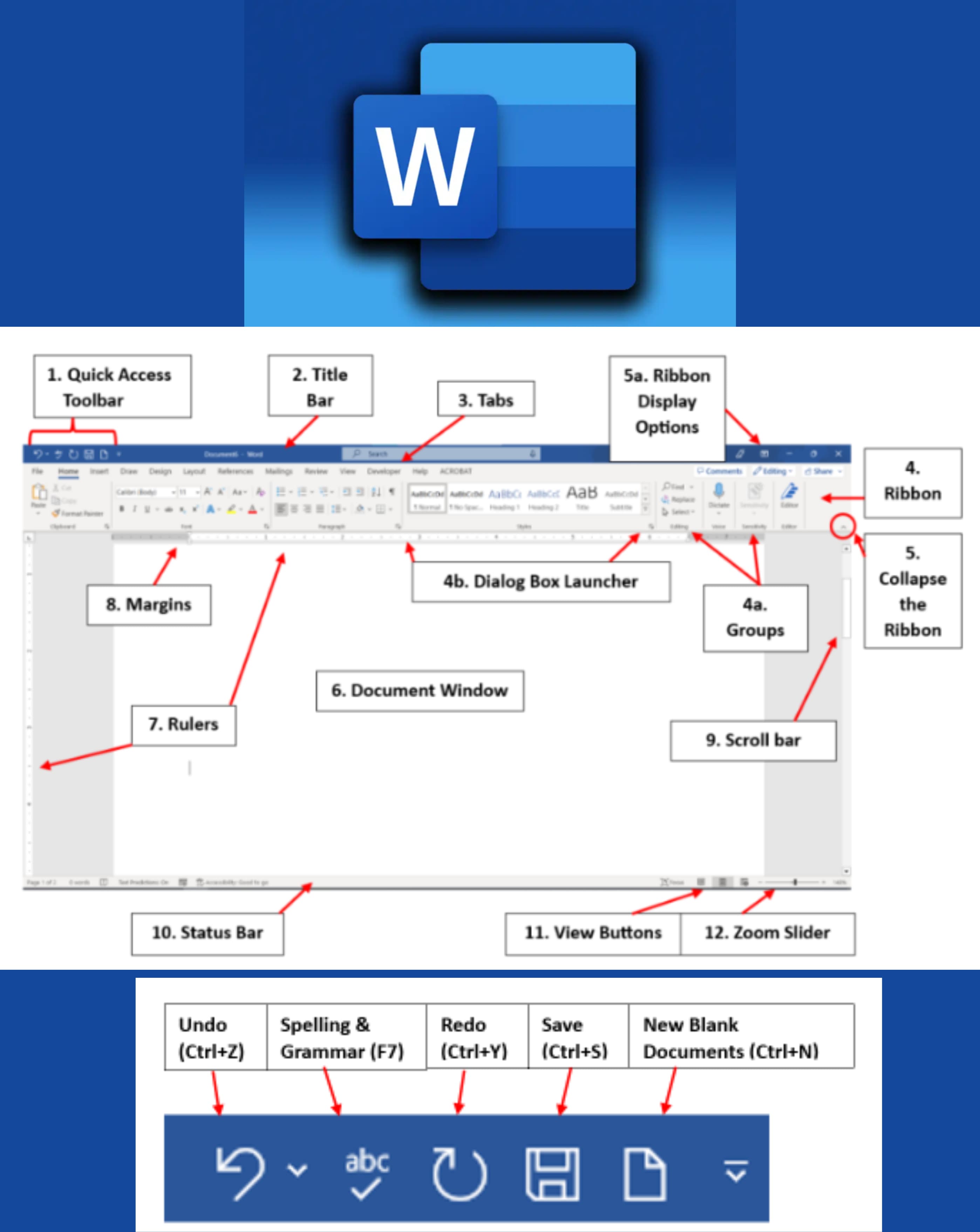
Q1: Define MS Office.
Ans: MS Office is a collection of Microsoft applications like Word, Excel, PowerPoint, Access, and Outlook used for office work and productivity.
Q2: Name 4 programs of MS Office.
Ans:
The programs are:- ➔ MS Word
- ➔ MS Excel
- ➔ MS PowerPoint
- ➔ MS Outlook
Q3: Enlist some MS Office Applications.
Ans: Some MS Office applications are Word, Excel, PowerPoint, Access, and Outlook.
Q4: Define Word Processor.
Ans: A word processor is software used to create, edit, format, and print text documents.
Q5: Enlist some Word Processors.
Ans: Examples of word processors are Microsoft Word, LibreOffice Writer, and Google Docs.
Q6: Define MS-Word.
Ans: MS-Word is a word processing software developed by Microsoft used to create, edit, format, and print text documents.
Q7: Define Title Bar.
Ans: The Title Bar is the topmost bar of the MS-Word window that displays the name of the document and the application.
Q8: Define File Menu.
Ans: The File Menu contains commands like New, Open, Save, Save As, and Print.
Q9: Define the Ribbon of MS Word.
Ans: The Ribbon is a toolbar that contains tabs and commands for various functions in MS Word.
Q10: Define the Quick Access Toolbar of MS Word.
Ans: The Quick Access Toolbar provides shortcuts to frequently used commands.
Q11: Describe the functions performed by MS-Word in the computer.
Ans: MS-Word allows users to create, edit, format, save, and print text documents with features like spell check, tables, and graphics insertion.
Q12: Why are tab settings used in MS-Word?
Ans: Tab settings in MS-Word are used to align text properly and organize content into columns or sections.
Q13: Write a method to create a table in MS-Word.
Ans: To create a table, go to the Insert tab, click on Table, then select the number of rows and columns needed.
Q14: What is the shortcut for undo and redo in MS-Word?
Ans: The shortcut for Undo is Ctrl + Z, and the shortcut for Redo is Ctrl + Y.
Q15: How to create a new Word document?
Ans:
To create a new Word document:- ➔ Open MS-Word
- ➔ Click on File → New
- ➔ Choose Blank Document
Q16: How to save a new Word document?
Ans:
To save a new Word document:- ➔ Click on File → Save As
- ➔ Choose the location
- ➔ Enter the file name
- ➔ Click Save
Q17: How to print a Word document?
Ans:
To print a Word document:- ➔ Click File → Print
- ➔ Select the printer
- ➔ Set the preferences
- ➔ Click Print
Q18: Explain the methods of inserting page number to a Word document.
Ans:
To insert page numbers:- ➔ Go to the Insert tab
- ➔ Click Page Number
- ➔ Choose the position and style
- ➔ The page numbers will be added
Q19: How to save a Word file in PDF format?
Ans:
To save a Word file in PDF format:- ➔ Click File → Save As
- ➔ Choose PDF from the "Save as type" dropdown
- ➔ Click Save
Q20: How to delete a row or column in a table in MS-Word?
Ans:
To delete a row or column:- ➔ Right-click on it
- ➔ Select Delete Cells
- ➔ Choose Delete entire row or Delete entire column
Q21: How to insert a text box in MS-Word?
Ans:
To insert a text box:- ➔ Go to the Insert tab
- ➔ Click Text Box
- ➔ Choose a style or draw your own
Q22: What is the shortcut for align text left and align text right in MS-Word?
Ans: The shortcut for Align Left is Ctrl + L, and for Align Right is Ctrl + R.
Q23: How to insert a Symbol in MS-Word?
Ans:
To insert a symbol:- ➔ Go to the Insert tab
- ➔ Click Symbol
- ➔ Select the desired symbol from the list
Q24: How to insert a Picture in MS-Word?
Ans:
To insert a picture:- ➔ Click the Insert tab
- ➔ Select Pictures
- ➔ Choose a picture from your device
- ➔ Click Insert
Q25: Define Document Area of MS Word.
Ans: The Document Area is the blank space where you type and edit your text.
Q26: Define Ruler.
Ans: The Ruler helps in aligning text, graphics, and setting margins.
Q27: Define Cursor.
Ans: The Cursor is the blinking line that shows where text will appear.
Q28: Define Scroll Bar.
Ans: Scroll Bars allow you to move the document up, down, left, or right.
Q29: Define the Window control buttons.
Ans: The Window control buttons minimize, maximize, or close the window.
Q30: Define Zoom Slider.
Ans: The Zoom Slider changes the view size of the document.
Q31: Why is it important to save a document?
Ans: Saving a document prevents loss of data and allows it to be opened later.
Q32: What is the difference between SAVE and SAVE AS command?
Ans: SAVE updates an existing file, while SAVE AS creates a new file with a new name or location.
Q33: What is the difference between CUT and COPY command?
Ans: CUT removes text from its original place, COPY duplicates it without removing.
Q34: Define Undo Command.
Ans: Undo reverses the last action performed in the document.
Q35: Define Redo Command.
Ans: Redo restores an action that was undone.
Q36: Define Repeat Command.
Ans: Repeat repeats the last command or action performed.
Q37: Define Text formatting in MS Word.
Ans: Text formatting changes the appearance of text, such as font, size, color, and style.
Q38: Define Paragraph Alignment in MS Word.
Ans: Paragraph alignment sets the position of text: left, center, right, or justified.
Q39: Define Drop cap in MS Word.
Ans: Drop cap makes the first letter of a paragraph larger and drops it into the text.
Q40: How can Drop cap be inserted in MS Word?
Ans: Select the first letter, go to Insert tab, click Drop Cap, and choose a style.
Q41: Why are Bullets and Numberings used?
Ans: Bullets and Numberings organize text into lists for better readability.
Q42: Define Border and Shading Toolbar.
Ans: This toolbar is used to add borders and background shading to text or paragraphs.
Q43: How does the spelling and Grammar check feature work?
Ans: It highlights mistakes and suggests corrections for spelling and grammar errors.
Q44: Define Header in MS Word.
Ans: A header is text or graphics that appear at the top of every page.
Q45: Define Footer in MS Word.
Ans: A footer is text or graphics that appear at the bottom of every page.
Q46: How to insert a table in MS Word.
Ans: Go to Insert tab, click Table, and choose the number of rows and columns.
Q47: Define Page setup.
Ans: Page setup is used to adjust page size, margins, orientation, and layout.
Q48: What are Margins in Page setup?
Ans: Margins are the blank spaces around the edges of a page.
Q49: Define Page Orientation.
Ans: Page orientation sets the page as Portrait (vertical) or Landscape (horizontal).
Q50: Define Print Preview.
Ans: Print Preview shows how the document will look when printed.
Q51: Define PDF.
Ans: PDF stands for Portable Document Format, used to share documents without changes.
Q52: Define Text Box.
Ans: A text box is a movable box where you can type text separately from the main document.
Q53: What is the extension of the MS-Word file?
Ans: The file extension of an MS-Word document is .docx.
Q54: Write the shortcut keys for the following in MS Word.
Ans:
| Command | Shortcut Key |
|---|
| Create new file | Ctrl + N |
| Save a file | Ctrl + S |
| Access File Menu | Alt + F |
| Copy | Ctrl + C |
| Paste | Ctrl + V |
| Cut | Ctrl + X |
| Open a new document | Ctrl + O |
| Slide between documents | Ctrl + F6 |
| Close current document | Ctrl + W |
| Undo command | Ctrl + Z |
| Redo command | Ctrl + Y |
| Repeat a command | F4 |
| Find text | Ctrl + F |
| Replace Text | Ctrl + H |
| Subscript | Ctrl + = |
| Superscript | Ctrl + Shift + = |
| To change a Font Style | Ctrl + Shift + F |
| To increase Font size | Ctrl + Shift + → |
| To decrease Font size | Ctrl + Shift + < |
| Bold Text | Ctrl + B |
| Underline Text | Ctrl + U |
| Italics Text | Ctrl + I |
| Minimize a document | Ctrl + M |
| Text Justify | Ctrl + J |
| Text Align Left | Ctrl + L |
| Text Align Right | Ctrl + R |
| Text Align Center | Ctrl + E |
| To select whole document | Ctrl + A |
| To select Text | Shift + Arrow Keys |
| Access Spelling and Grammar feature | F7 |
| Print a document | Ctrl + P |
| Show or hide Ruler | Alt + W, R |
| Single Line Spacing | Ctrl + 1 |
| Double Line Spacing | Ctrl + 2 |
| 1.5 Line Spacing | Ctrl + 5 |
| Display MS Word Help | F1 |