

AutoCAD Beginner Guide — Learn AutoCAD Quickly
Start using AutoCAD today with this beginner-friendly guide covering the basics of drafting and designing for architecture...
By Mr. Rana Faizan Sahib7 min read
Introduction — Your First Step into Digital Design
AutoCAD is the industry standard for drafting, designing, and modelling in architecture, engineering, and interior design across Pakistan and globally in 2025. Whether you aim to design a building, plan a site layout, or create mechanical components, AutoCAD provides the tools to produce accurate, professional, and industry-ready drawings.
This complete AutoCAD beginner guide is written for students in Pakistan — including DAE Architecture, DAE Civil, and B.Arch students — with step-by-step explanations, practical examples, and real career advice. By the end of this guide you will feel confident to create your own 2D drawings, understand layers, and begin your journey into 3D modelling.
Industry Standard
Used in every architecture and engineering office in Pakistan.
Free for Students
Autodesk offers a free 1-year student licence via the Education Portal.
Career Gateway
Foundation for Revit, SketchUp, BIM, and freelance work.
What is AutoCAD?
AutoCAD (Automatic Computer-Aided Design) is professional drafting and design software developed by Autodesk that allows architects, engineers, and designers to create precise 2D technical drawings and 3D models digitally. It replaced manual drafting boards and is now the global standard for construction documentation.
- Create technical 2D drawings for buildings, machinery, and engineering schematics.
- Model 3D structures, architectural components, and site layouts.
- Produce floor plans, elevations, sections, and construction documentation for contractors.
- Collaborate with engineers and clients using DWG — the universal industry file format.
Did you know? AutoCAD was first released in 1982 and is now used in over 150 countries. In Pakistan, it is the most commonly required software skill listed in architecture and engineering job advertisements.
Why Learn AutoCAD in 2025?
Whether you are a DAE student or a B.Arch graduate, AutoCAD proficiency directly impacts your employability and freelance earning potential in Pakistan's construction industry.
Industry Standard
Nearly every engineering and architectural office in Pakistan requires AutoCAD — it is the first skill employers check.
Career Opportunities
Unlock roles as CAD draftsman, 3D visualizer, BIM technician, or architectural assistant.
Precision & Efficiency
AutoCAD saves hours compared to manual drafting and eliminates measurement errors in technical drawings.
Foundation for BIM
AutoCAD fluency makes learning Revit, SketchUp, 3ds Max, and BIM tools significantly faster and easier.
Freelance Income
Offer 2D drafting, 3D modelling, and rendering services to clients on Upwork and Fiverr from Pakistan.
Free Student Access
Students get AutoCAD free for 1 year through the Autodesk Education Portal — no cost to start learning.
System Requirements for AutoCAD 2025
AutoCAD 2025 runs on modern mid-range hardware. Below are the minimum and recommended specifications for smooth performance.
| Component | Specification |
|---|---|
| Processor | Intel i5 / AMD Ryzen 5 (i7 / Ryzen 7 recommended) |
| RAM | 8 GB minimum — 16 GB recommended for large drawings |
| Graphics | 2 GB VRAM, DirectX 12 compatible GPU |
| Storage | 10 GB free space — SSD strongly preferred |
| Operating System | Windows 10 or Windows 11 (64-bit only) |
| Internet | Required for installation, activation, and updates |
Low-end laptop tip: If your system does not meet the recommended specs, use AutoCAD LT or the free AutoCAD Web App (browser-based) — both are excellent for learning basic 2D drafting without heavy hardware.
Step-by-Step Installation Guide for Students
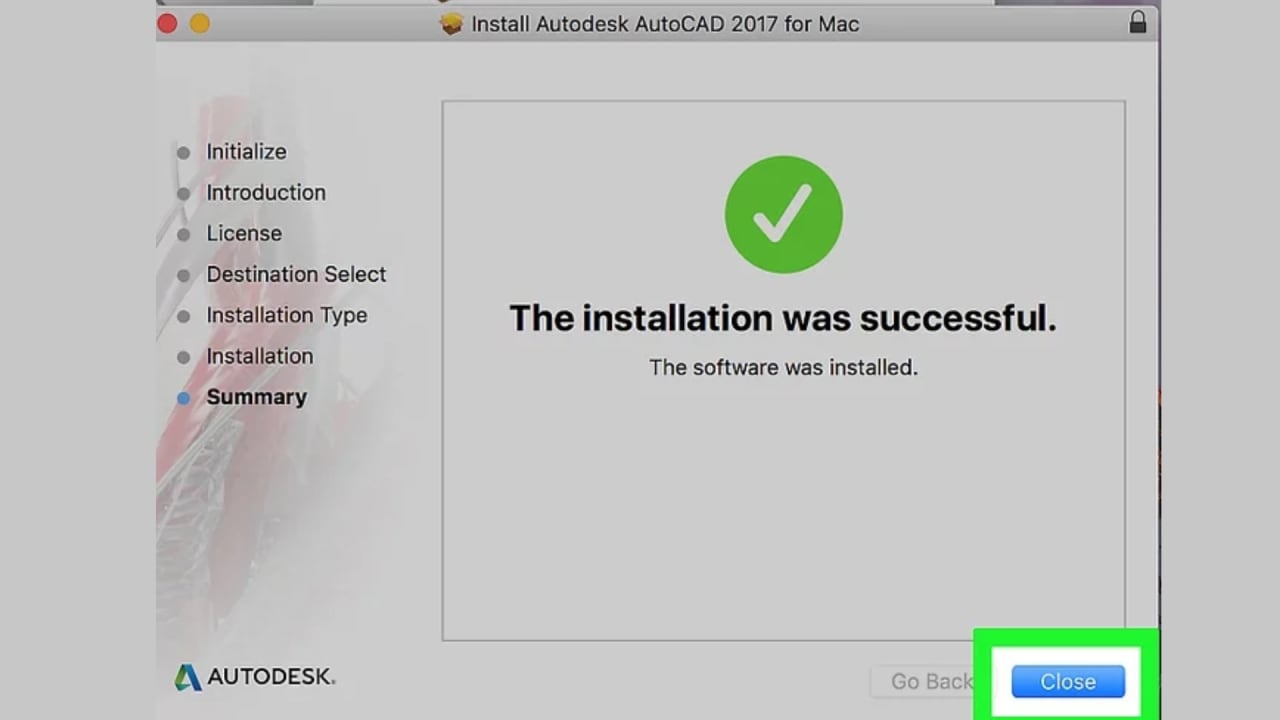
Students in Pakistan can access AutoCAD 2025 completely free for one year through the Autodesk Education Portal. Follow these steps carefully:
Visit Autodesk Education Portal
Go to the Autodesk Education Portal and click "Get Products".
Create a Student Account
Sign up using your university email address and verify your student status.
Select AutoCAD 2025
Search for AutoCAD in the product list, select your operating system, and download the installer.
Run Installer as Administrator
Right-click the downloaded file and select 'Run as Administrator'. Follow the on-screen installation steps.
Activate Free Student Licence
Sign in with your Autodesk account when prompted to activate your free 1-year educational licence.
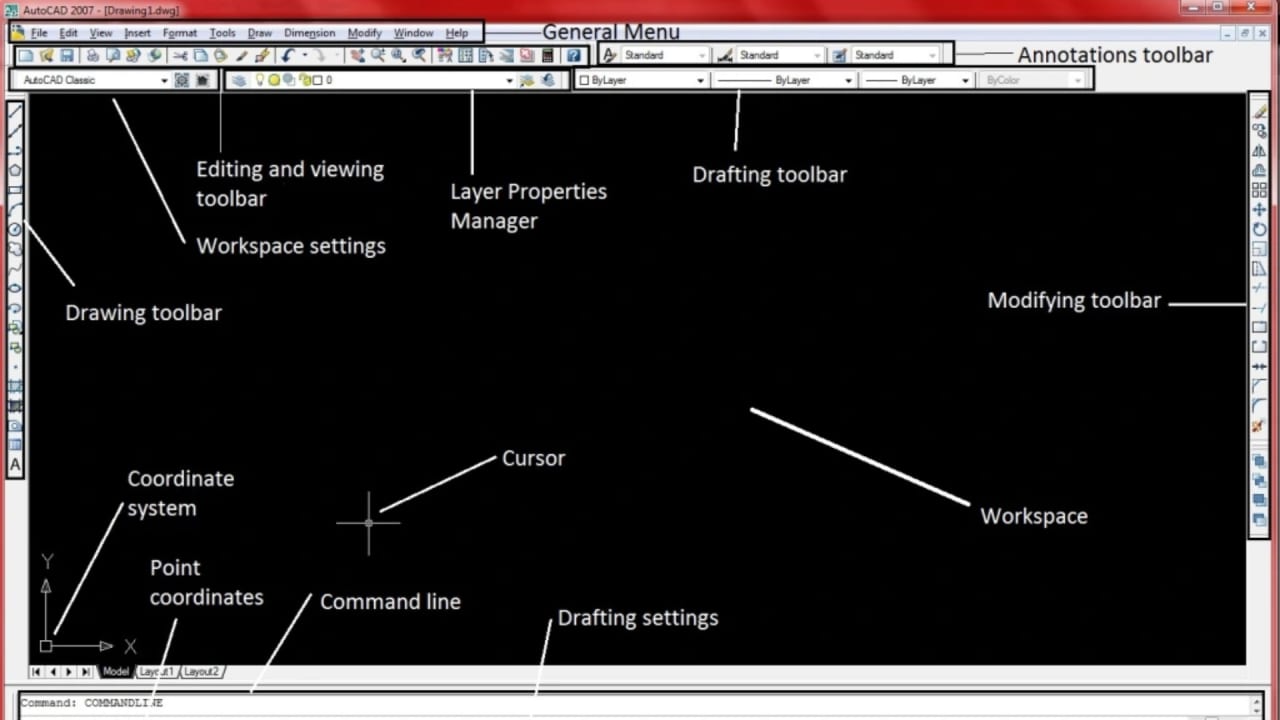
AutoCAD Interface Overview for Beginners
The AutoCAD interface can feel overwhelming at first, but it is logically organised. Spending 30 minutes learning each area will make every future drawing session faster and more confident.
Ribbon
The top toolbar containing all toolsets: Home, Insert, Annotate, View, and Manage tabs.
Drawing Area
The main black (or white) canvas where all your drawing work happens.
Command Line
The most powerful area — type commands like LINE, CIRCLE, OFFSET for fast access to every tool.
Navigation Bar
Zoom, pan, and orbit controls for moving around your drawing efficiently.
Status Bar
Shows live coordinates, grid, snap, ortho mode, and UCS toggles at the bottom of the screen.
Properties Panel
Displays and edits the properties of selected objects: layer, colour, line type, and thickness.
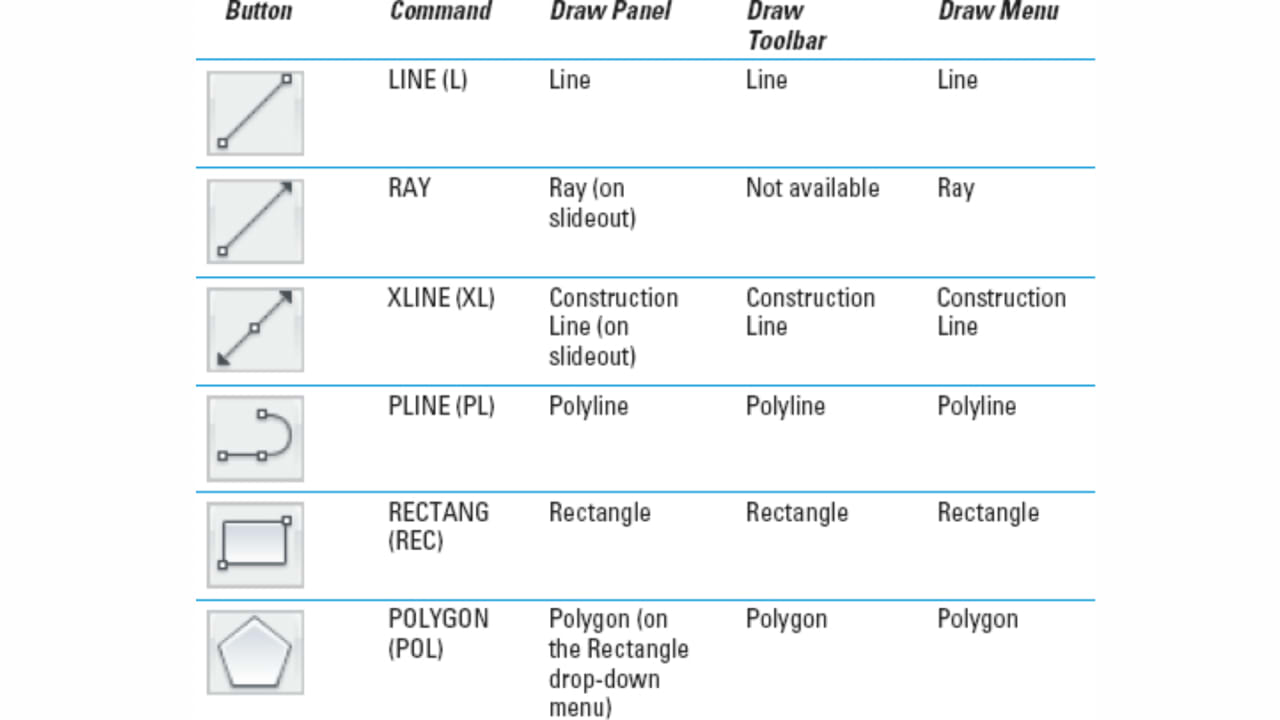
Essential Basic Drawing Tools and Commands
AutoCAD's power lies in its keyboard shortcuts — called command aliases. Memorising these 12 commands will cover 80% of all 2D drafting tasks you encounter as a beginner.
LINE
Draw straight lines between two points
CIRCLE
Draw circles by center and radius
RECTANGLE
Draw rectangles quickly
ARC
Draw curved arc segments
POLYLINE
Draw connected multi-segment lines
HATCH
Fill closed areas with patterns
OFFSET
Create parallel copies of objects
TRIM
Trim objects at cutting edges
EXTEND
Extend objects to meet a boundary
MOVE
Move objects to a new position
COPY
Copy objects within the drawing
MIRROR
Create mirrored copies of objects
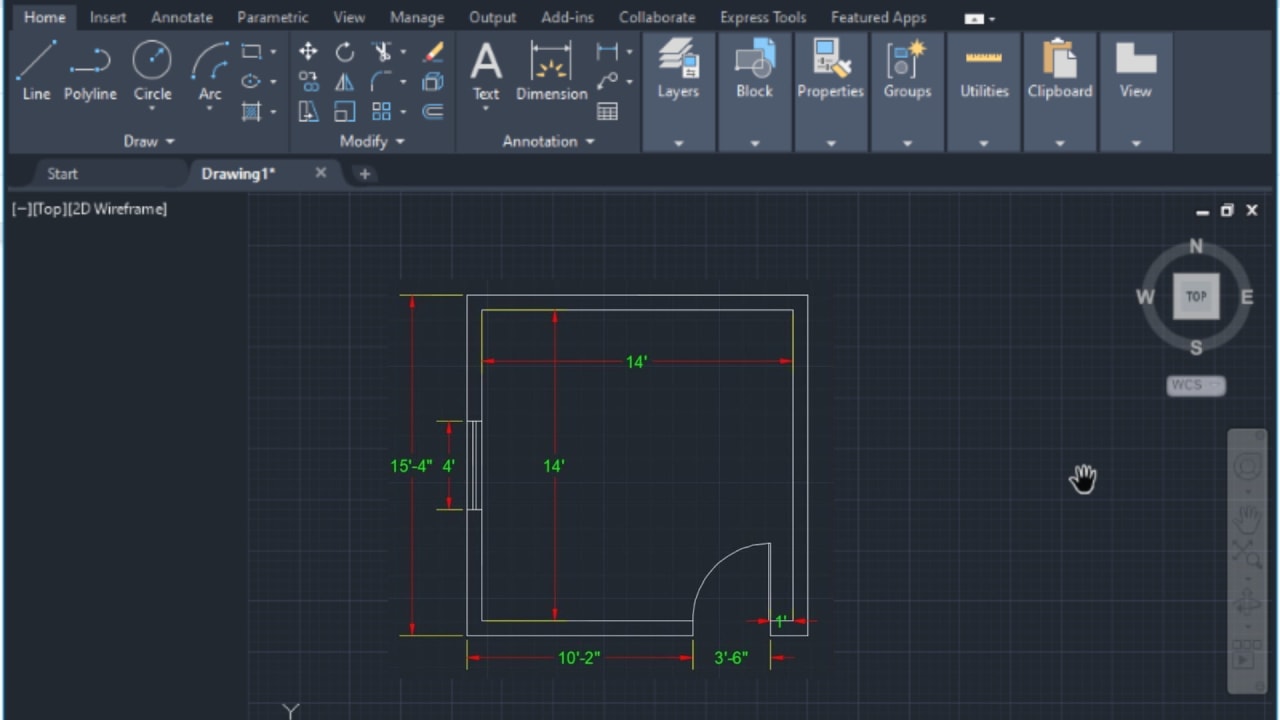
Creating Your First AutoCAD Drawing — Single Room Floor Plan
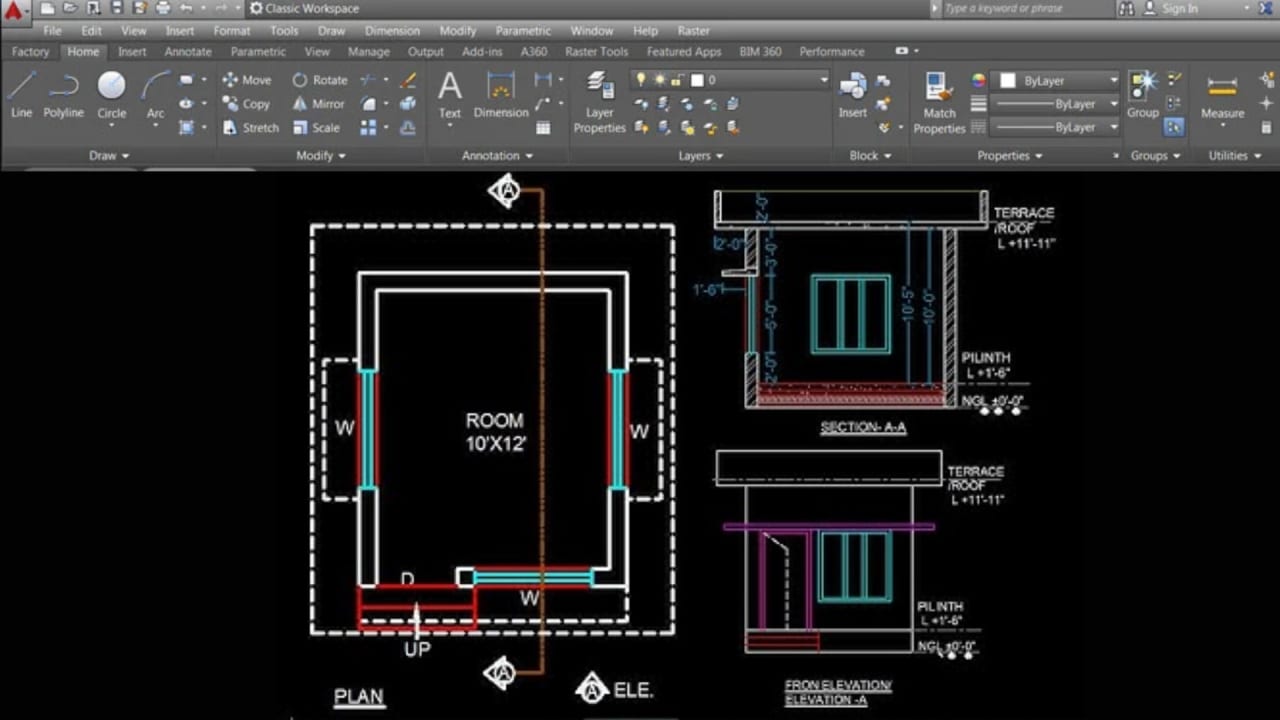
The best first AutoCAD project for beginners is a simple single-room floor plan. It teaches you units, layers, the LINE tool, and file saving — all in one session.
Open a New Drawing
Launch AutoCAD and select the Start Drawing template from the welcome screen.
Set Units
Type UNITS in the command line → set Length to Decimal, Insertion Scale to Millimeters, and click OK.
Draw the Walls
Use the RECTANGLE (REC) command. Type REC, press Enter, click a point, then type @5000,4000 for a 5m × 4m room.
Add Doors and Windows
Create separate layers named 'Doors' and 'Windows'. Draw openings using LINE and ARC commands on the correct layer.
Add Dimensions
Use the DIMLINEAR (DLI) command to annotate wall lengths. Create a 'Dimensions' layer for these.
Save Your Drawing
Press Ctrl+Shift+S → Save As → name the file RoomPlan.dwg in your project folder.
You did it! Saving your first .DWG file is a milestone. From here, every drawing you create builds your speed, accuracy, and professional confidence.
Layers and Colors — Organising Your AutoCAD Drawings
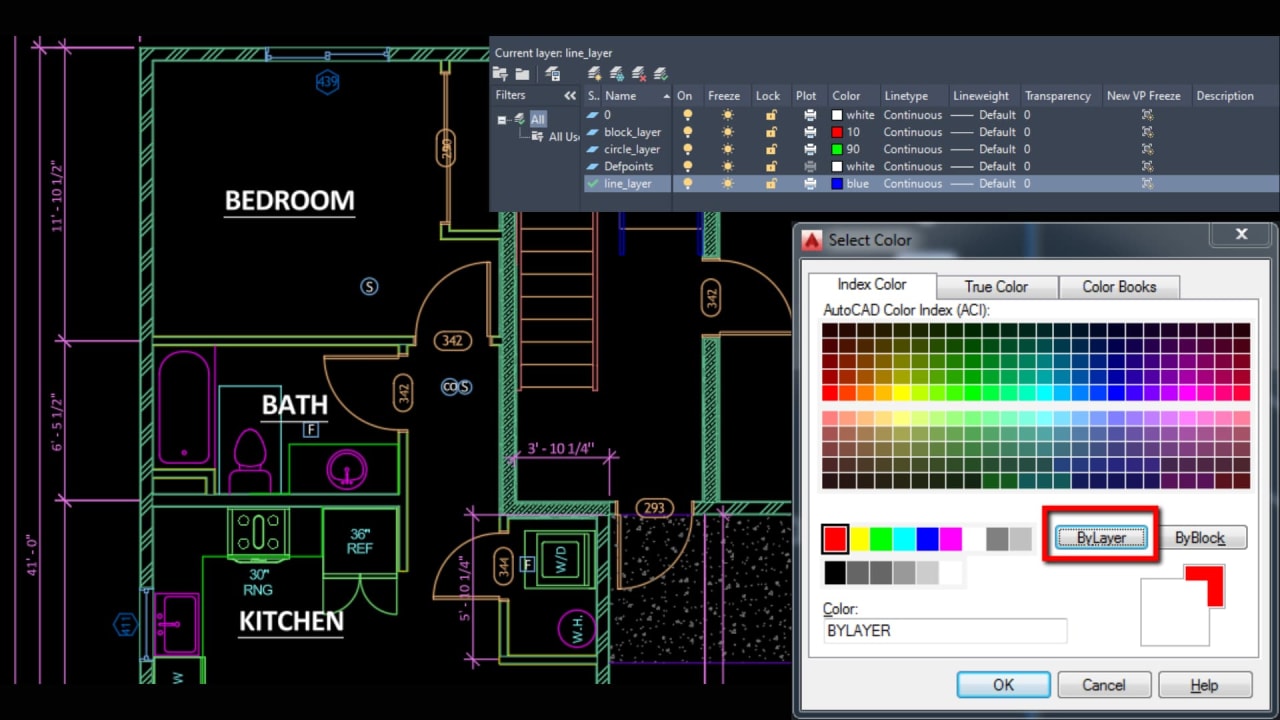
Layers are the single most important organisational feature in AutoCAD. They allow you to separate different elements of your drawing so they can be edited, printed, or hidden independently — just like transparent sheets stacked on top of each other.
Recommended layer structure for architectural drawings
| Layer Name | Colour | Contents |
|---|---|---|
| WALLS | Red (1) | All structural wall lines |
| DOORS | Green (3) | Door swings and openings |
| WINDOWS | Cyan (4) | Window outlines and openings |
| DIMENSIONS | Yellow (2) | All measurements and annotations |
| TEXT | White (7) | Labels, room names, notes |
| FURNITURE | Magenta (6) | Furniture layout (moveable separately) |
| HATCHING | Blue (5) | Floor patterns, wall fills |
Essential Settings Every Beginner Must Configure
Before diving into real projects, configure these five settings once — they will save you from the most common beginner frustrations.
- Enable Ortho Mode (F8) — forces lines to draw at exact 90° angles, making walls and grids perfectly straight.
- Set Object Snap (F3) to Endpoint, Midpoint, Intersection, and Perpendicular — ensures your drawing snaps to precise geometry rather than approximating.
- Customise the Quick Access Toolbar with Save, Undo, Redo, Layer Properties, and Zoom Extents for faster workflow.
- Set Annotation Scale before adding dimensions and text to ensure they print at the correct readable size in layouts.
- Save a custom drawing template (.DWT) with your preferred units, layers, linetypes, and text styles — it eliminates repetitive setup on every new drawing.
AutoCAD 2D vs 3D — Understanding the Difference
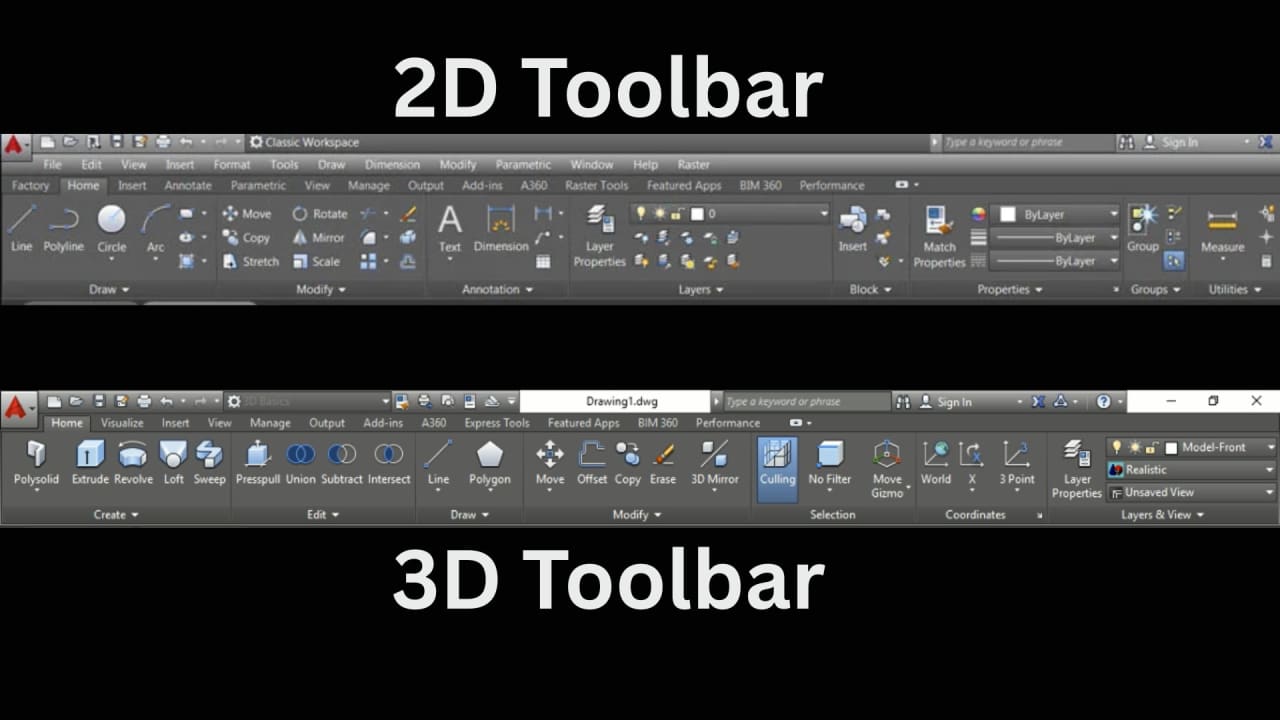
AutoCAD supports both 2D drafting and 3D modelling within the same software. Most beginners should focus on mastering 2D first before exploring 3D — typically from Week 4 of their learning journey.
2D Drafting
Start Here First
- Floor plans, elevations, sections
- Construction documents
- Beginner-friendly, fast to learn
- Used daily in Pakistan offices
Weeks 1–3 of your learning plan
3D Modelling
Advance to This
- 3D buildings, objects, components
- Extrude, Presspull, Solid modelling
- Requires solid 2D foundation first
- Gateway to Revit and BIM
Week 4+ of your learning plan
Common Beginner Mistakes — and How to Avoid Them
These five mistakes are made by nearly every AutoCAD beginner. Reading this section now will save you hours of frustration later.
Not Using Layers
Drawing everything on Layer 0 creates unmanageable files. Always create named layers for walls, doors, dimensions, and annotations.
Ignoring Units at Start
Setting wrong units (mm vs inches) early causes major scaling problems in large projects. Always set units before drawing.
Not Saving Frequently
AutoCAD crashes happen. Enable autosave every 10 minutes and use Ctrl+S as a reflex. Losing hours of work is avoidable.
Wrong UCS in 3D
Drawing in incorrect User Coordinate System orientation leads to misaligned 3D geometry that is very hard to fix later.
Overusing Grip Edits
Beginners over-rely on dragging grip points instead of entering precise values. Always type exact coordinates and distances.
5-Week AutoCAD Learning Plan for Beginners
This structured plan takes you from zero to job-ready in five weeks — practising at least one hour daily. Follow it in order for the fastest skill progression.
Interface & Basics
Interface tour, units setup, Line, Circle, Rectangle, Arc
Layers & Annotation
Layers, Dimensions, Text styles, Hatching, Object Snap
Blocks & Layouts
Blocks, Groups, Xrefs, Paper space layouts, Printing/Plotting
3D Introduction
3D workspace, Extrude, Presspull, Orbit, 3D views
Projects & Portfolio
Real-world projects, advanced tools, freelance portfolio
Daily practice tip: One hour of focused AutoCAD practice daily produces better results than five hours on a weekend. Muscle memory for commands develops through repetition — not duration.
Best Online Resources to Learn AutoCAD in 2025
Free platforms and YouTube channels
- Autodesk Learning Hub — official tutorials, exercises, and certification prep at autodesk.com/learning.
- YouTube — SourceCAD — comprehensive beginner to advanced AutoCAD tutorials, free and well-structured.
- YouTube — Balkan Architect — architecture-focused AutoCAD and Revit tutorials relevant to B.Arch students.
- Coursera / edX — free auditable beginner courses with optional paid certificates.
Paid platforms worth the investment
- Udemy — AutoCAD Complete Course — beginner-friendly, affordable (often under PKR 1,500 on sale), and lifetime access.
- LinkedIn Learning — professional-level courses with certificates that employers recognise.
- Skillshare — creative architectural and design tutorials alongside AutoCAD fundamentals.

AutoCAD Projects for Beginners — Build Your Portfolio
The fastest way to improve is through real projects. Start with the simplest and progress in order — each project adds a new skill to your portfolio.
Starter
Single-Room Floor Plan
Skills: LINE, RECTANGLE, layers, dimensions
Starter
Two-Bedroom House Layout
Skills: Multiple layers, doors, windows, scale
Intermediate
Furniture Drawings — Table & Chair
Skills: Precision drawing, OFFSET, TRIM
Intermediate
House Front Elevation
Skills: Elevations, hatching, text annotation
Intermediate
Site Layout with Boundary Walls
Skills: Scale, plotting, paper space
Advanced
Multi-Storey Building Section
Skills: Complex layers, details, dimensions
Career Scope and Salary for AutoCAD Graduates in Pakistan
AutoCAD skills open doors to multiple entry-level and mid-level positions in Pakistan's architecture, construction, and engineering sectors. Combined with a formal architecture or engineering degree, your career prospects grow significantly.
AutoCAD Draftsman
Produce technical drawings for architectural and construction firms. Most common entry-level role in Pakistan.
Junior CAD Operator
Work in engineering consultancies producing drawings for civil, mechanical, or architectural projects.
Architectural Assistant
Support licensed architects in design studios — progressing toward independent design responsibilities.
Freelance CAD Designer
Work remotely for international clients via Upwork, Fiverr, and Freelancer. Earn in USD from Pakistan.
Monthly salary ranges in Pakistan — PKR (2025)
AutoCAD Trainee / InternPKR 30,000
Junior CAD OperatorPKR 45,000
Architectural AssistantPKR 60,000
Mid-Level DraftsmanPKR 85,000
Senior CAD / BIM SpecialistPKR 150,000
Figures are approximate monthly averages. Actual salaries vary by city, employer, and experience level.

Frequently Asked Questions (FAQs)
- What is AutoCAD?
- AutoCAD is a design and drafting software developed by Autodesk. It allows users to create 2D technical drawings, 3D architectural models, floor plans, elevations, and construction details.
- Why should I learn AutoCAD?
- Learning AutoCAD opens career opportunities as a draftsman, CAD operator, or 3D modeler. It improves accuracy, saves time, and provides a foundation for other design software. It also enables freelancing opportunities.
- What are the system requirements for AutoCAD?
- Minimum requirements include: Intel i5 or AMD Ryzen 5 processor, 8 GB RAM (16 GB recommended), 2 GB graphics card, 10 GB free storage, Windows 10/11 (64-bit), and internet for installation/updates.
- How do I install AutoCAD as a student?
- Go to Autodesk Education Portal, sign up with your student email, select AutoCAD, download the installer, run it, and activate your educational license.
- What are some essential settings for beginners?
- Key settings include Snap Mode (F9), Ortho Mode (F8), Polar Tracking (F10), Grid Display (F7), and Object Snap (F3) to help with precise and accurate drafting.
- Should I start with 2D or 3D AutoCAD?
- Start with 2D drafting, as it is easier to learn and forms the foundation. Once comfortable, you can move on to 3D modeling.
- What are common mistakes beginners make in AutoCAD?
- Common mistakes include not using layers properly, ignoring units, not saving frequently, drawing in the wrong coordinate system, and overusing unnecessary commands.
- What projects should a beginner start with?
- Begin with small projects such as a single-room floor plan, two-bedroom house layout, furniture drawing, simple house elevation, or a site layout with boundary wall.
- What career opportunities exist for AutoCAD beginners in Pakistan?
- Entry-level jobs include AutoCAD Draftsman, Junior CAD Operator, Architectural Assistant, and Site Supervisor. Starting salaries range from PKR 30,000–50,000/month.
- Where can I learn AutoCAD online?
- Free resources include Autodesk Learning Hub, YouTube channels like SourceCAD, Balkan Architect, and CAD in Black, and Coursera/EdX beginner courses. Paid options include Udemy, LinkedIn Learning, and Skillshare.
Conclusion — Start Drawing, Start Designing
AutoCAD is the foundation every architecture and engineering student in Pakistan needs in 2025. It is the first software employers ask for, the tool freelancers rely on, and the gateway to more advanced software like Revit and 3ds Max.
Start with 2D basics, build your first floor plan, master layers, and follow the 5-week learning plan. Every line you draw builds skill, speed, and confidence for your career.
Remember — every professional was once a beginner who drew their first rectangle. Open AutoCAD today, start small, practice daily, and your design career begins right now.
Ready to go further? Explore our architecture career guide for Pakistan or compare degree options in our B.Arch vs BSc Architectural Engineering article.
Written by
Mr. Rana Faizan Sahib
Mr. Rana Faizan Sahib has 5 years of experience training students and professionals in AutoCAD, 3D modeling, and drafting techniques. He emphasizes hands-on learning to master precision design tools.