

AutoCAD for Mechanical Engineering Beginners | DAE Mechanical
Learn AutoCAD step by step for mechanical engineering projects. Perfect for DAE Mechanical beginners looking to enhance design and drafting skills.
By Mrs. Kanwal Zulqarnain8 min read
Introduction — AutoCAD for Mechanical Engineering Beginners in Pakistan
AutoCAD is the cornerstone of modern mechanical engineering design in Pakistan and globally. From drafting precision machine components to creating complete assembly layouts and fabrication drawings, AutoCAD in 2025 enables engineers to produce accurate, professional, and standardised technical documentation that meets international manufacturing standards.
For DAE Mechanical students and fresh engineering beginners in Pakistan, mastering AutoCAD does two things simultaneously: it improves academic performance on drawing assessments, and it directly opens doors to career opportunities in mechanical, manufacturing, industrial, and Gulf engineering sectors.
This guide walks you through everything from first installation to creating professional-grade mechanical drawings — with practical tips, command references, system requirements, and career context specific to Pakistan's engineering industry.
12+
Essential Commands Covered
6
Mechanical Drawing Types
Free
Student Licence via Autodesk
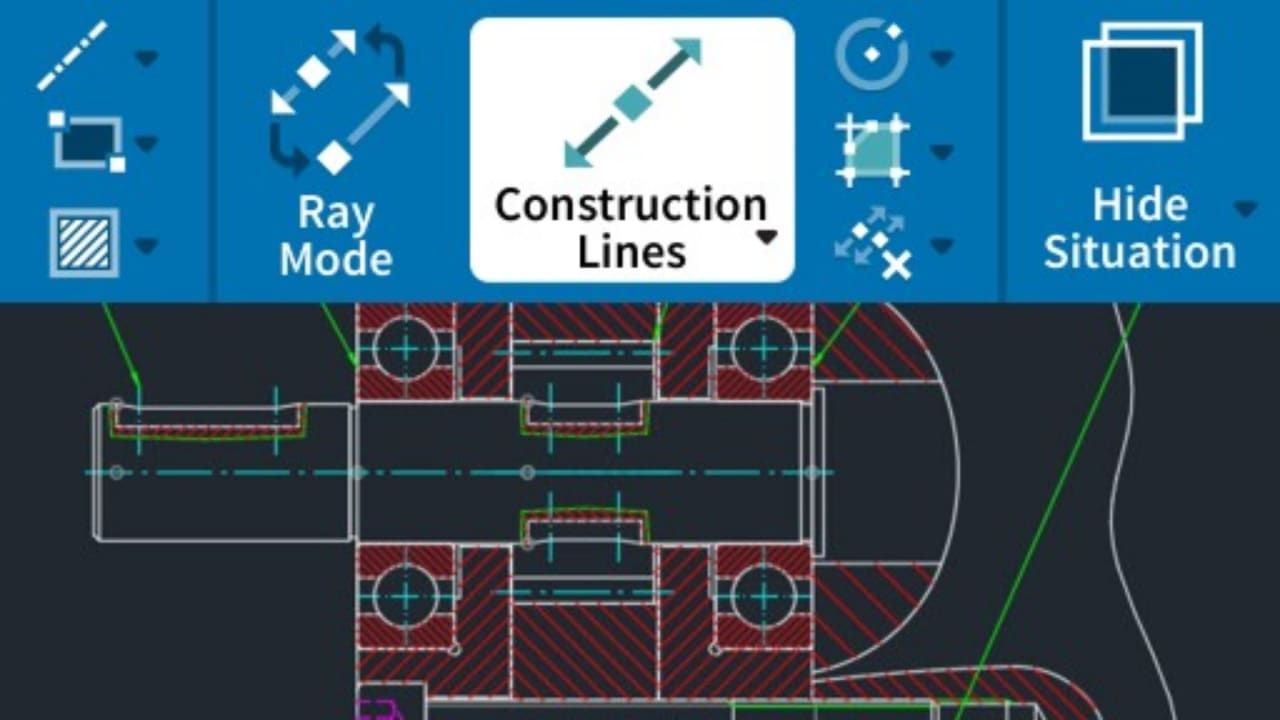
What is AutoCAD? — History, Purpose, and Mechanical Engineering Use
AutoCAD, developed by Autodesk and first released in 1982, is the world's most widely used computer-aided design (CAD) software. It enables precise creation of 2D drawings and 3D models, and is the primary design tool across architecture, civil engineering, mechanical engineering, and manufacturing disciplines globally.
In mechanical engineering specifically, AutoCAD is used to design and document machine parts, tooling, piping layouts, structural frames, and complete fabrication drawing packages that go directly to the shop floor.
Core uses of AutoCAD in mechanical engineering practice
- Create detailed technical 2D mechanical drawings to international standards (ISO, ASME, DIN)
- Design 3D solid models of machine components, assemblies, and sub-assemblies
- Generate fabrication-ready drawings with precise dimensions, tolerances, and surface finish callouts
- Standardise designs for industrial and manufacturing use with title blocks and revision history
- Produce bills of materials, parts lists, and assembly documentation packages
Why AutoCAD is Essential for Mechanical Engineers in Pakistan
AutoCAD has fundamentally transformed how mechanical engineers design, document, and communicate technical work. Here is why it is non-negotiable for every Pakistani engineering student and professional:
Accuracy
Eliminates human errors present in manual drafting — every line, dimension, and tolerance is mathematically precise.
Speed & Efficiency
Drawing and editing tasks that take hours on a drawing board are completed in minutes using AutoCAD commands.
Industry Standard
AutoCAD drawings are the accepted format in every mechanical, manufacturing, and industrial firm in Pakistan and internationally.
Career Opportunities
AutoCAD proficiency is listed as a primary requirement in mechanical engineering job advertisements across Pakistan and Gulf countries.
3D Visualisation
Model complete assemblies in 3D, detect clashes before fabrication, and produce photorealistic presentations for clients.
Standardised Documentation
Produce ISO and ASME-compliant drawings with title blocks, tolerances, and material specifications ready for manufacturing.

AutoCAD System Requirements — Minimum and Recommended Specs
Before downloading AutoCAD, verify your computer meets at least the minimum specifications. For smooth performance on complex mechanical assembly drawings, aim for the recommended specs.
| Component | Minimum | Recommended |
|---|---|---|
| Processor | Intel i5 / AMD Ryzen 5 | Intel i7 / AMD Ryzen 7 |
| RAM | 8 GB | 16 GB or more |
| Graphics Card | 2 GB VRAM, DirectX 12 | 4 GB VRAM dedicated GPU |
| Storage | 10 GB free space (HDD) | SSD with 20 GB free |
| Operating System | Windows 10 64-bit | Windows 11 64-bit |
| Display | 1280 × 1024 resolution | 1920 × 1080 or higher |
Minimum — functional but slow on large drawingsRecommended — smooth performance
Installation Guide — Get AutoCAD Free with Your Student Licence
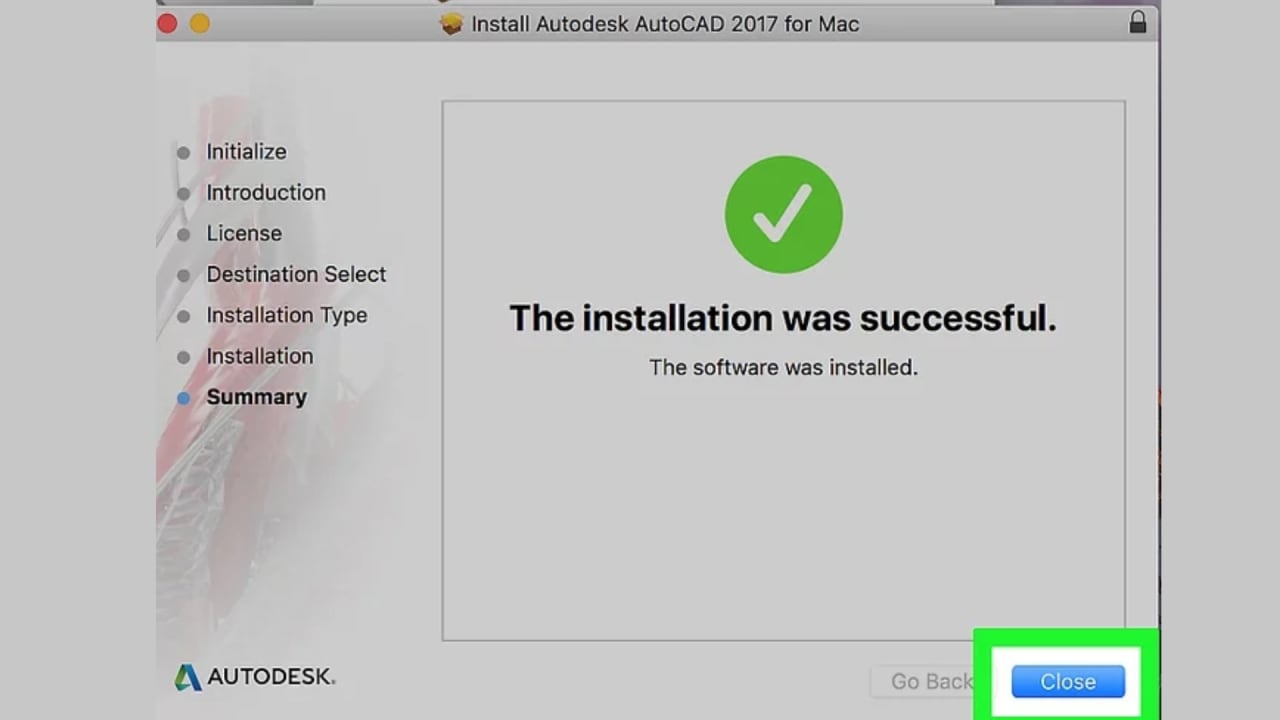
Autodesk offers a completely free 1-year educational licence for AutoCAD to verified students. Follow these steps to install it on your machine:
01
Go to the Autodesk Education Portal
Visit autodesk.com/education and click "Get Started" on the Education plan.
02
Create an account with your student email
Sign up using your university or college email address. Autodesk will verify your student status automatically.
03
Select AutoCAD and download the installer
Choose AutoCAD 2025 from the software catalogue. Select your operating system (Windows 64-bit) and download the installer file.
04
Run the installer as Administrator
Right-click the installer file → 'Run as Administrator'. Follow the on-screen prompts and accept the licence agreement.
05
Sign in to activate your free licence
When AutoCAD opens, sign in with your Autodesk account. Your 1-year student licence activates automatically — renew annually.
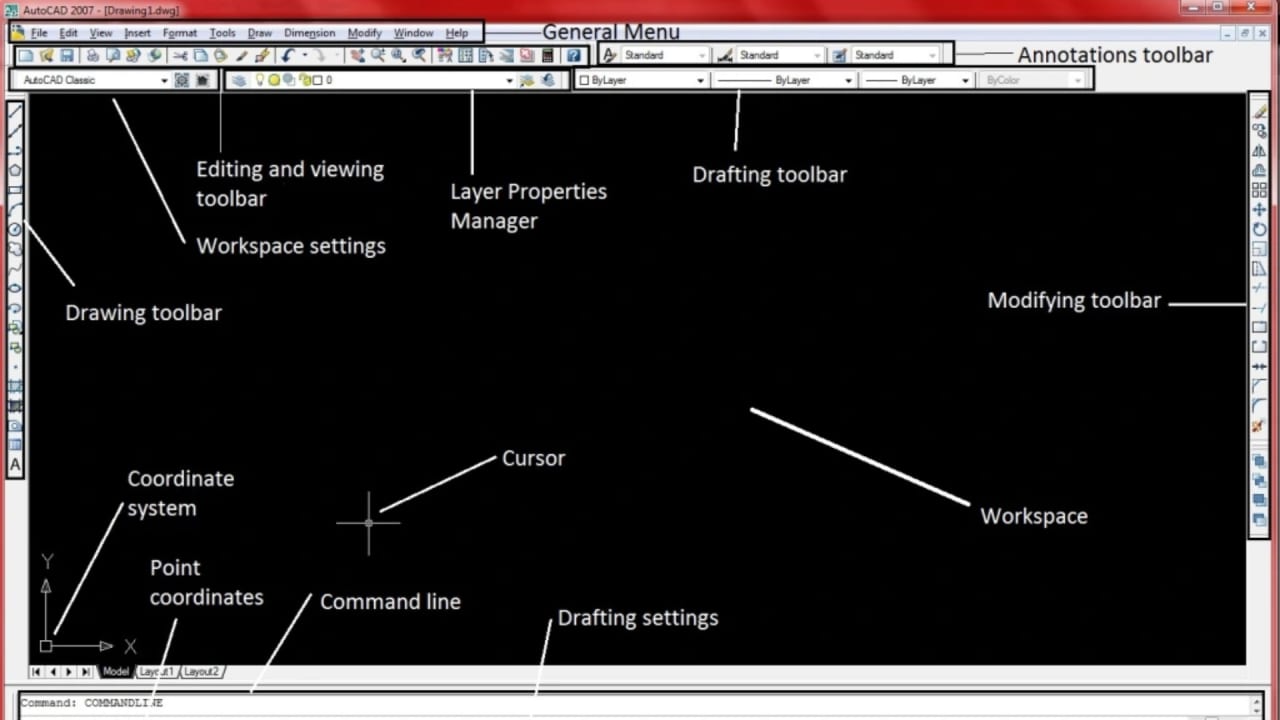
AutoCAD Interface Overview — Understanding the Workspace
The AutoCAD interface is designed around a central drawing area surrounded by tools. Understanding each zone before you start drawing saves hours of confusion and builds confident, efficient habits from day one.
Ribbon
The tabbed toolbar across the top. Houses all drawing, modify, annotation, and layer tools organised by category.
Drawing Area
The large central workspace where you create and edit all 2D and 3D geometry. Right-click here for context options.
Command Line
The text bar at the bottom. Type any command here for full precision control. Watch it — AutoCAD tells you what to do next.
Status Bar
Toggles for Ortho, Object Snap, Polar Tracking, and Dynamic Input. These control how accurately you draw.
Model / Layout Tabs
Model space is where you draw; Layout (Paper Space) is where you set up print sheets with title blocks.
Properties Panel
Shows and edits the layer, colour, linetype, and lineweight of any selected object.
Basic Commands Every Mechanical Engineering Beginner Must Know
These 12 commands cover the vast majority of all mechanical drafting tasks. Learn them by typing — not by clicking — from your first session.
L
Line
Draw straight lines between two points — the most fundamental drafting command.
C
Circle
Create circles by center and radius — essential for shafts, holes, and bore details.
REC
Rectangle
Draw rectangular shapes instantly — for base plates, flanges, and blocks.
TR
Trim
Trim unwanted line segments at intersections — critical for clean mechanical geometry.
O
Offset
Create parallel lines or curves at a precise distance — for wall thickness and tolerances.
DIM
Dimension
Add linear, angular, and radial dimensions — mandatory on every mechanical drawing.
H
Hatch
Apply section fill patterns (steel, cast iron, etc.) for sectional views.
MI
Mirror
Mirror geometry along an axis — for symmetric components like flanges and brackets.
AR
Array
Repeat features in patterns — for bolt hole circles and repeating mechanical features.
E
Erase
Delete selected geometry cleanly without disrupting surrounding objects.
M
Move
Relocate objects precisely using coordinate input.
SC
Scale
Resize geometry proportionally from a base point.
Pro tip: In AutoCAD, pressing Space repeats the last command instantly — faster than retyping. Pressing Enter and Space are identical in AutoCAD. Use whichever is closer to your drawing hand.
Mechanical Drawing Types in AutoCAD — What Every Beginner Should Know
Professional mechanical drawings follow standardised conventions. These six drawing types form the complete documentation package for any engineered component or assembly:
Orthographic Views
Front, top, and side views that together fully define a 3D component in 2D — the standard for all mechanical documentation.
Sectional Views
Cut-through views that reveal internal geometry, holes, and bores invisible in external views.
Assembly Drawings
Show how individual components fit together, with part numbers, bills of materials, and fit tolerances.
Exploded Views
Components shown separated but aligned along their assembly axes — used in maintenance manuals and catalogues.
Detail Views
Enlarged view of a specific area to show fine features, threads, chamfers, or tight tolerances clearly.
Isometric Views
3D-looking drawings on a 2D plane that give an intuitive spatial understanding of a component.
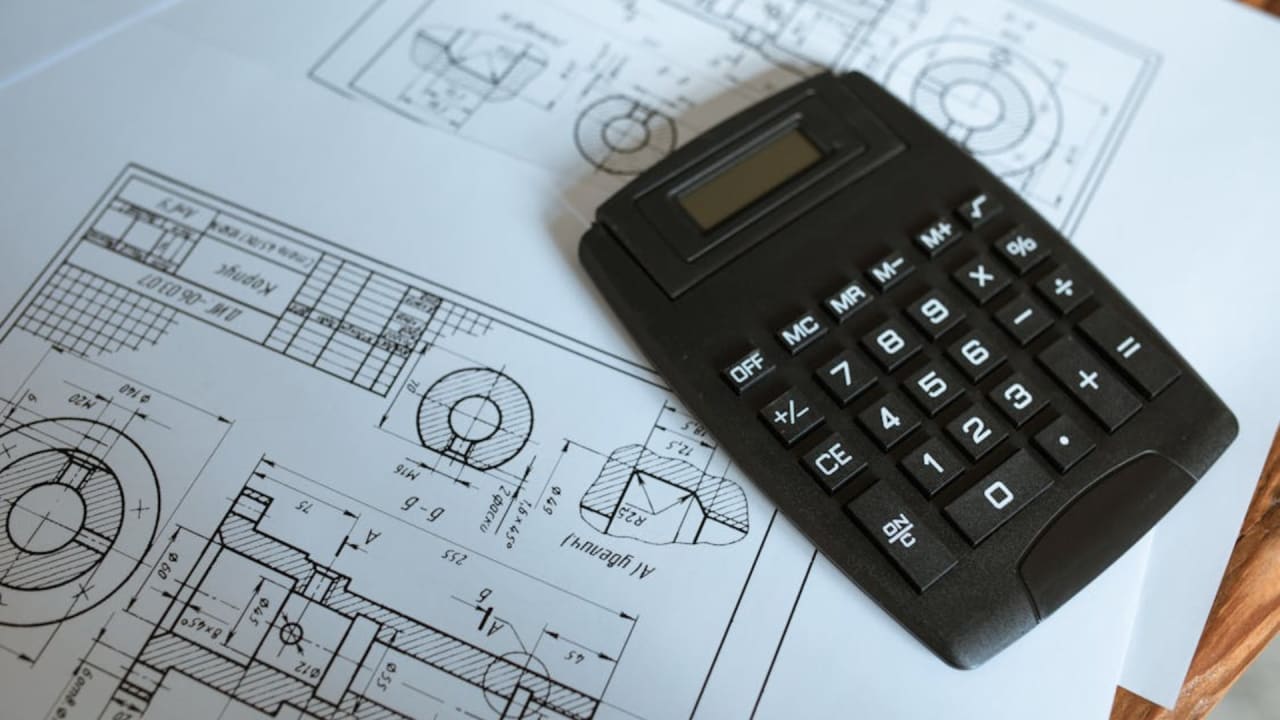
Learning Tips for DAE Mechanical Students in Pakistan
Follow this structured six-step path to go from complete beginner to job-ready mechanical draughtsman:
01
Install & set up AutoCAD
Download via Autodesk Education Portal using your student email — completely free for 1 year.
02
Learn the interface
Spend the first week understanding the Ribbon, Command Line, and drawing area — navigation before drawing.
03
Master basic 2D commands
Practice Line, Circle, Rectangle, Offset, Trim, and Dimension daily using simple mechanical shapes.
04
Draft real mechanical parts
Copy a real bolt, shaft, or bracket from a textbook. Reproduce it in AutoCAD with accurate dimensions.
05
Add layers and dimensions
Organise every drawing with proper layers (OBJECT, HIDDEN, DIMENSION, CENTRE) and dimension all features.
06
Progress to 3D modeling
Use Extrude, Revolve, and Boolean operations to turn your 2D drawings into 3D solid models.
Common mistakes mechanical beginners make in AutoCAD
- Drawing everything on Layer 0 — always create separate layers for OBJECT lines, HIDDEN lines, CENTRE lines, and DIMENSIONS. Professional drawings without proper layers will not be accepted by any firm or examiner.
- Skipping Object Snaps (F3) — drawing without snapping produces geometry that looks correct but has gaps and overlaps invisible at normal zoom. Always snap to endpoints, midpoints, and centres.
- Guessing dimensions instead of typing them — always type exact coordinate values. Never draw by eye when a measurement is known.
- Not saving frequently — AutoCAD has no autosave by default. PressCtrl+Severy 10 minutes without exception.
Career Relevance — AutoCAD in Pakistan's Mechanical Engineering Sector
AutoCAD proficiency is the single most consistently demanded technical skill in mechanical engineering job advertisements across Pakistan. Whether you are applying to a manufacturing plant in Faisalabad, an oil and gas firm in Karachi, or a Gulf engineering contractor, AutoCAD appears in the requirements list.
Pakistan — Domestic Sector
- Manufacturing plants — Faisalabad, Karachi, Lahore
- HVAC and piping design firms
- Steel fabrication and structural workshops
- Automotive and heavy industry suppliers
Gulf & International Roles
- CAD Technician roles in Saudi, UAE, and Qatar
- Piping and mechanical draughtsman positions
- Oil, gas, and petrochemical plant documentation
- Salary premium of 3-5x vs Pakistan domestic market
Is AutoCAD Right for You? — Three Questions to Answer
Answer these honestly to understand exactly where to focus your learning effort.
Q1: Are you studying DAE Mechanical or a mechanical engineering degree in Pakistan?
→ Yes:
AutoCAD is mandatory in your curriculum. Learn it before your first drawing assessment — it will define your grade.
→ No / Not sure:
If you are in a related field (civil, electrical, industrial), AutoCAD is still highly transferable — the core commands are identical.
Q2: Do you want to work as a CAD Technician or Mechanical Draughtsman in Pakistan or Gulf countries?
→ Yes:
AutoCAD proficiency is the primary screening criterion. Focus on 2D mechanical drawings, dimensioning, and layer management first.
→ No / Not sure:
If your goal is design engineering (not draughting), combine AutoCAD with SolidWorks or Inventor for 3D parametric modelling.
Q3: Do you have access to a computer that meets the minimum specs?
→ Yes:
Download AutoCAD free via the Autodesk Education Portal today — no reason to delay.
→ No / Not sure:
Use AutoCAD Web (browser-based, free) on any computer for 2D practice while saving for an upgrade. Core commands are identical.
Bottom line: For any mechanical engineering student or professional in Pakistan, learning AutoCAD is one of the highest-return investments of time you can make. Start with L, C, REC, O, TR, DIM — master those six commands on real mechanical drawings and you will be ahead of most beginners within a month.
Frequently Asked Questions (FAQs)
- Is AutoCAD necessary for DAE Mechanical students?
- Yes, AutoCAD is essential for DAE Mechanical students because it improves drafting skills, precision in mechanical drawings, and job opportunities in engineering fields.
- Can beginners learn AutoCAD easily?
- Yes, beginners can learn AutoCAD effectively with consistent practice, understanding of basic commands, and applying knowledge to simple mechanical drawings.
- Which AutoCAD version is best for beginners?
- Any recent stable version, such as AutoCAD 2023 or 2025, is suitable for beginners. These versions provide the latest features and compatibility.
- Is AutoCAD widely used in mechanical industries in Pakistan?
- Yes, AutoCAD is widely used in mechanical, manufacturing, and industrial sectors across Pakistan for designing, drafting, and technical documentation.
- What is the difference between 2D and 3D AutoCAD for mechanical engineering?
- 2D AutoCAD is used for drafting technical drawings, orthographic views, and layout plans, while 3D AutoCAD is used for modeling parts, assemblies, and visualization of mechanical components.
- How long does it take to learn AutoCAD for mechanical engineering?
- With regular practice of 1-2 hours per day, beginners can become proficient in basic 2D drafting within 3-4 weeks, and start 3D modeling in 6-8 weeks.
Conclusion — From Beginner to Professional Mechanical Draughtsman
AutoCAD for mechanical engineering is not just an academic requirement — it is the professional language of every drawing office, manufacturing plant, and engineering consultancy in Pakistan and internationally. Mastering its basic commands, drawing conventions, and layer management transforms you from a student into a productive, employable technical professional.
Start with simple 2D components, build to orthographic and sectional drawings, then advance to 3D solid modelling. Every drawing you complete sharpens your precision and builds the portfolio that opens career doors.
The only thing between you and AutoCAD proficiency is consistent daily practice. Download it free today and draw something.
Looking for more engineering resources? Browse all articles or explore our DAE study resources.
Written by
Mrs. Kanwal Zulqarnain
Mrs. Kanwal Zulqarnain offers 10 years of training experience in AutoCAD, BIM tools, and design documentation. His methodology empowers students to confidently execute complex projects.