

AutoCAD Installation Guide — Step by Step
Learn how to properly install AutoCAD on your system, including requirements, setup, and troubleshooting tips...
By Mr. Ali Husnain Hajveri8 min read
Introduction — Start Your Digital Design Journey with AutoCAD
AutoCAD installation is the very first step every architecture and engineering student in Pakistan must complete before drawing a single line. Whether you are a DAE Architecture student working on your first drafting assignment, a B.Arch undergraduate preparing construction documentation for studio, or a fresh graduate setting up for freelancing — installing AutoCAD correctly on day one saves hours of technical headaches later.
This guide is written specifically for Pakistani students and beginners. It covers how to download AutoCAD legally and for free through Autodesk's student programme, install it step by step on Windows, fix every common error, and configure it properly after installation so it is ready for professional architectural work from the start.
No skipped steps, no confusing technical jargon — just a clean, working AutoCAD installation ready for your first floor plan.

What is AutoCAD & Why Every Architecture Student Needs It
AutoCAD is a Computer-Aided Design (CAD) software developed by Autodesk and used globally as the industry standard for 2D technical drafting and 3D modelling in architecture, engineering, and construction. It replaces error-prone manual hand-drafting with precise, editable, and scalable digital drawings that can be shared instantly with any member of a project team.
In architectural practice across Pakistan, AutoCAD is used daily for producing:
- Floor plans, building sections, and elevations for submission and approval
- Furniture layouts and interior space planning drawings
- Construction working drawings and structural coordination documents
- Site plans and layout drawings for government approvals (CDA, LDA, KDA)
AutoCAD proficiency is the baseline expectation at every architecture and construction firm in Pakistan — it appears on virtually every job listing. Learning AutoCAD starts with a correct installation. Once that is done, every other skill — commands, shortcuts, layers, and 3D modelling — follows naturally.
New to AutoCAD? Read our complete AutoCAD for Architecture guide after installation to learn the essential commands, career scope, and freelancing opportunities.
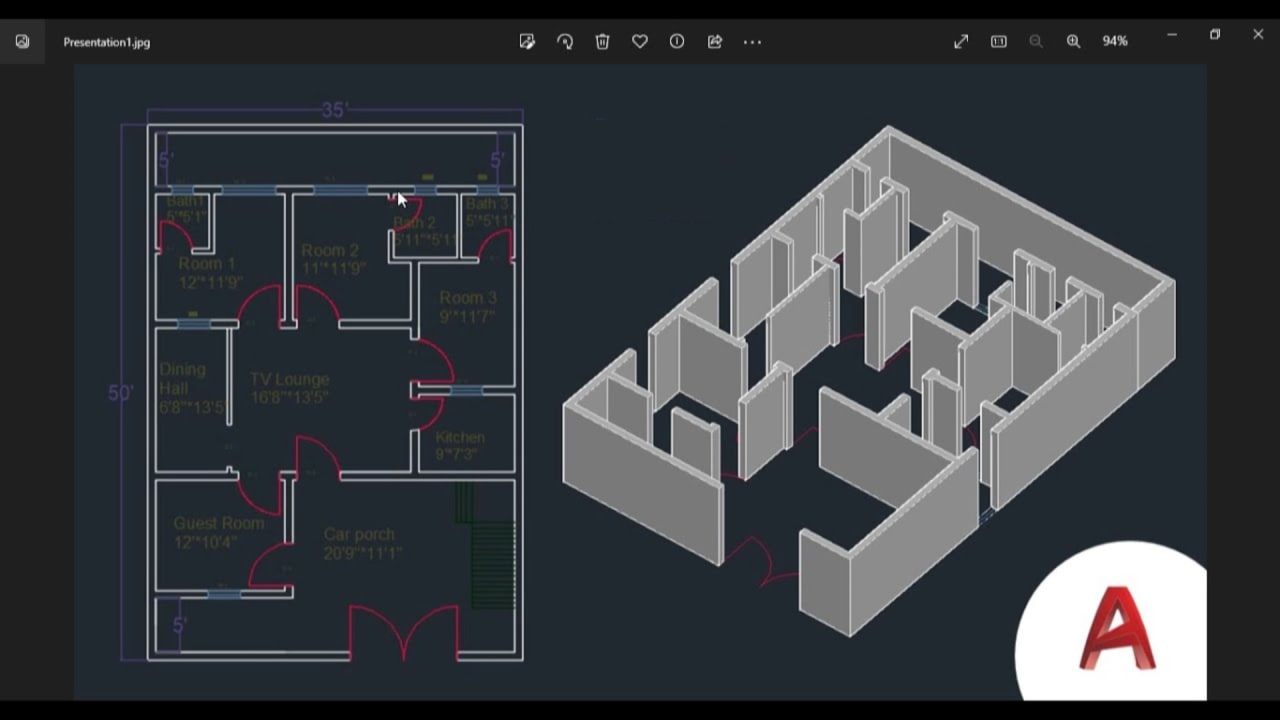
System Requirements for AutoCAD 2025 — Can Your PC Run It?
Before downloading, check that your computer meets AutoCAD 2025's minimum requirements. Installing AutoCAD on an underpowered machine causes crashes, freezes, and slow redraws that make learning frustrating and unproductive.
Processor
Intel i5 / AMD Ryzen 5
Minimum
RAM
8 GB min / 16 GB recommended
16 GB preferred
Graphics Card
2 GB DirectX 12 compatible
Dedicated GPU preferred
Storage
10 GB free space
SSD strongly recommended
Operating System
Windows 10 or 11 (64-bit)
macOS not supported natively
Internet Connection
Required for download & activation
Broadband recommended
Low-end laptop? If your PC has less than 8 GB RAM or an older processor, install AutoCAD LT — it runs significantly lighter while retaining full 2D drafting capability. You can always upgrade to full AutoCAD later.
Download AutoCAD Free — Student Version Guide for Pakistan 2025
Autodesk provides a 100% legal, full-featured, and free student version of AutoCAD for enrolled students and educators worldwide — including Pakistani students at DAE, B.Arch, and engineering programmes. The student version is identical to the commercial version and includes every tool and feature.
Visit the Autodesk Education Community
Go to autodesk.com/education and click 'Get Started'. This is the official page for free student software — no third-party sites needed.
Create a Free Autodesk Account
Sign up with your college email address if possible — this speeds up student verification. A personal email also works.
Verify Your Student Status
Upload your student ID card, admission slip, or college enrollment letter. Autodesk typically approves within 24 hours.
Select AutoCAD for Windows (64-bit)
Choose your version carefully — select AutoCAD (not AutoCAD LT) and the Windows 64-bit installer for full features.
No college email? A personal Gmail works fine for Autodesk student verification — just upload a clear photo of your student ID card or admission form. Most applications are approved within a few hours.

AutoCAD Installation — Complete Step by Step Guide for Windows
Follow these steps in order. Skipping a step — especially running as administrator — is the most common reason installation fails for Pakistani students:
Run Installer as Administrator
Right-click the downloaded .exe file and select 'Run as administrator'. This prevents permission errors that cause Error 1603.
Accept the License Agreement
Read and accept Autodesk's End User License Agreement. You must agree to proceed with the installation.
Choose Installation Location
The default path (C:\Program Files\Autodesk) is fine. If you have an SSD, install there for significantly better performance.
Install All Recommended Components
Keep all recommended components checked — these include the Performance Feedback module and Autodesk Desktop App.
Wait for Installation to Complete
⏱ 15–30 minInstallation takes 15 to 30 minutes depending on your system speed. Do not close the installer or put your PC to sleep.
Launch AutoCAD
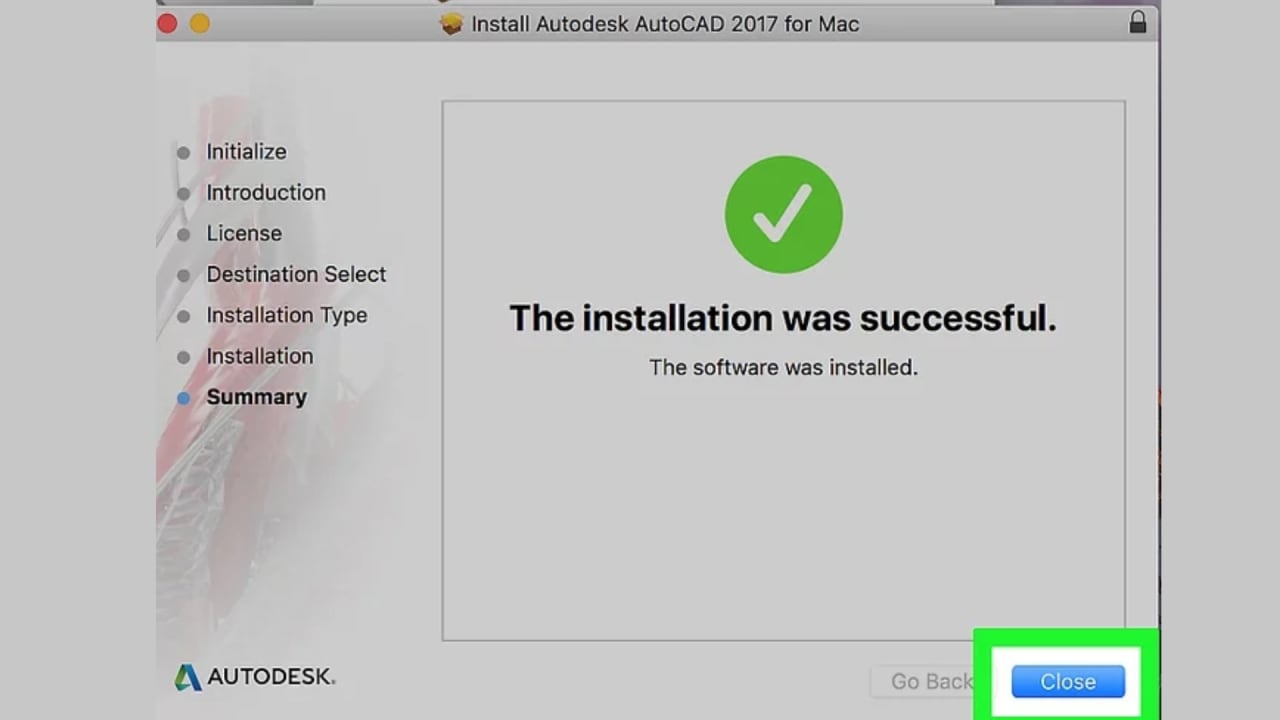
After installation completes, click 'Launch'. AutoCAD will open for the first time and begin loading its workspace.
Sign In to Activate Your License
Sign in with your Autodesk account credentials. Your student license will activate automatically once signed in.
Common AutoCAD Installation Problems & Fixes — Pakistan Student Guide
These are the four most frequent installation errors encountered by Pakistani architecture students — with exact fixes for each:
Error 1603
CommonProblem
Installation fails immediately or rolls back partway through.
Fix
Right-click the installer and select 'Run as administrator'. Also temporarily disable Windows Defender before starting.
Installation Stuck / Frozen
CommonProblem
The progress bar stops moving and the installer appears frozen.
Fix
Disable your antivirus software completely before running the installer. Antivirus programs frequently intercept AutoCAD's installation files.
License Activation Failed
ModerateProblem
AutoCAD opens but shows 'License not found' or trial mode warning.
Fix
Sign out of your Autodesk account from within AutoCAD, then sign back in. Ensure you are connected to the internet during first launch.
Crash on Startup
ModerateProblem
AutoCAD launches but immediately crashes or shows a graphics error.
Fix
Update your graphics card drivers from the GPU manufacturer's website (NVIDIA / AMD / Intel). Outdated drivers are the most common cause.
Still stuck? The Autodesk Community Forum at forums.autodesk.com is the most reliable source for error-specific solutions — search your exact error code and you will almost always find a working fix posted by other users.
Post-Installation Setup — Configure AutoCAD for Architectural Drafting
After AutoCAD installs successfully, four quick configuration steps will set it up correctly for architectural work in Pakistan. Skipping this setup means every new drawing starts with wrong units, missing snapping, and no template — wasting time on every project:
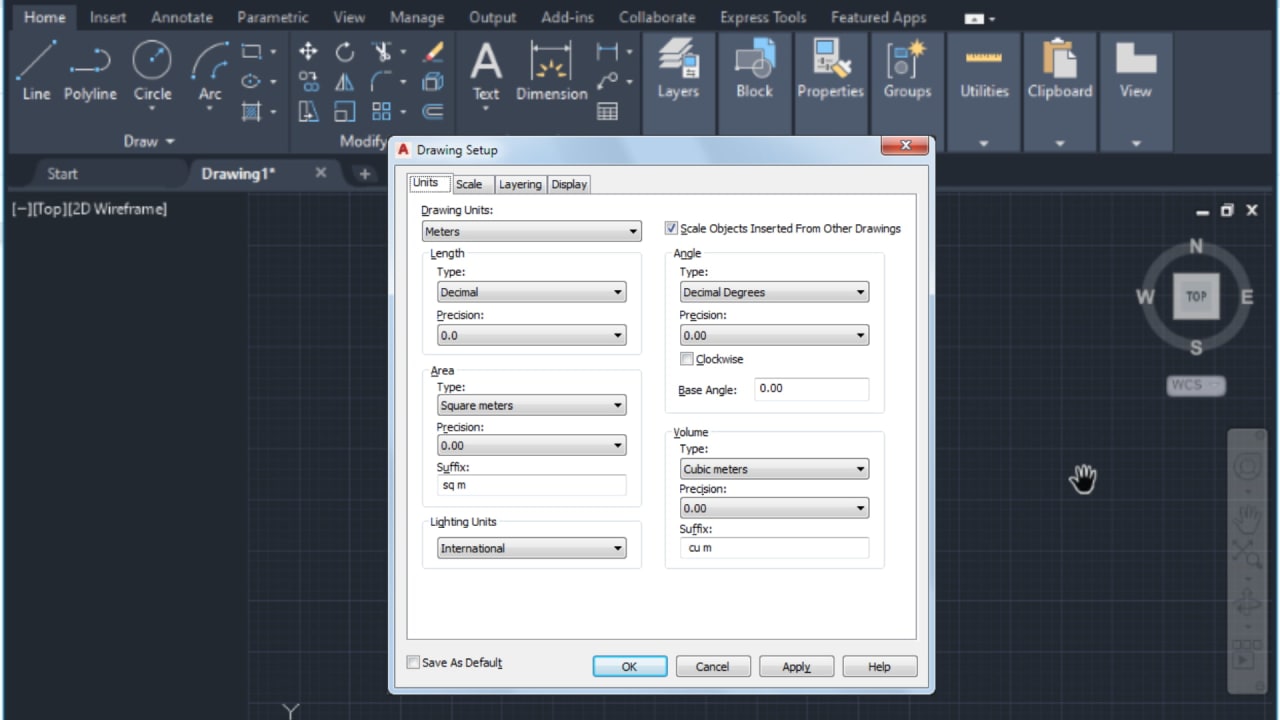
Set Drawing Units to Millimetres
Type UNITS in the command bar → set Length Type to Decimal, Units to Millimetres. All Pakistani architectural drawings use metric units.
Enable Ortho Mode and Object Snap
Press F8 to toggle Ortho (constrains lines to 0°/90°) and F3 for Object Snap. These two settings make clean floor plan drawing much easier.
Define Drawing Limits
Type LIMITS in the command bar and set your drawing area to match your standard paper size (A1: 841 × 594 mm). This prevents drawing outside the printable area.
Save a Custom Drawing Template (.dwt)
After configuring units, limits, and layers — go to File → Save As → AutoCAD Drawing Template. Name it 'Arch-A1-Template.dwt'. Every new drawing starts from your clean setup.
Recommended AutoCAD Add-ons & Toolsets for Architecture Students
These three tools extend AutoCAD's capability and are either included free with your subscription or free to download separately from Autodesk:
AutoCAD Architecture Toolset
Included freeAdds purpose-built architectural objects — smart walls, doors, windows, and automatic elevation generation. Included free with AutoCAD subscription.
Autodesk Desktop App
Auto-installedManages AutoCAD updates, license, and installed Autodesk products from one interface. Installs automatically with AutoCAD.
DWG TrueView
Free downloadFree standalone viewer that lets you open, view, print, and publish DWG files without a full AutoCAD license — share files with clients who do not have AutoCAD.
Frequently Asked Questions — AutoCAD Installation in Pakistan
- How do I download AutoCAD for installation?
- You can download AutoCAD from the official Autodesk Education website by creating an Autodesk account and selecting the correct version for your operating system.
- Is AutoCAD free for students?
- Yes, Autodesk provides a free one-year student version of AutoCAD with full features for students and educators.
- What are the system requirements to install AutoCAD?
- AutoCAD requires a 64‑bit Windows OS, at least 8GB RAM (16GB recommended), 2 GB graphics, 10 GB free storage, and internet access to install and activate. Always check the latest Autodesk requirements before installing. :contentReference[oaicite:0]{index=0}
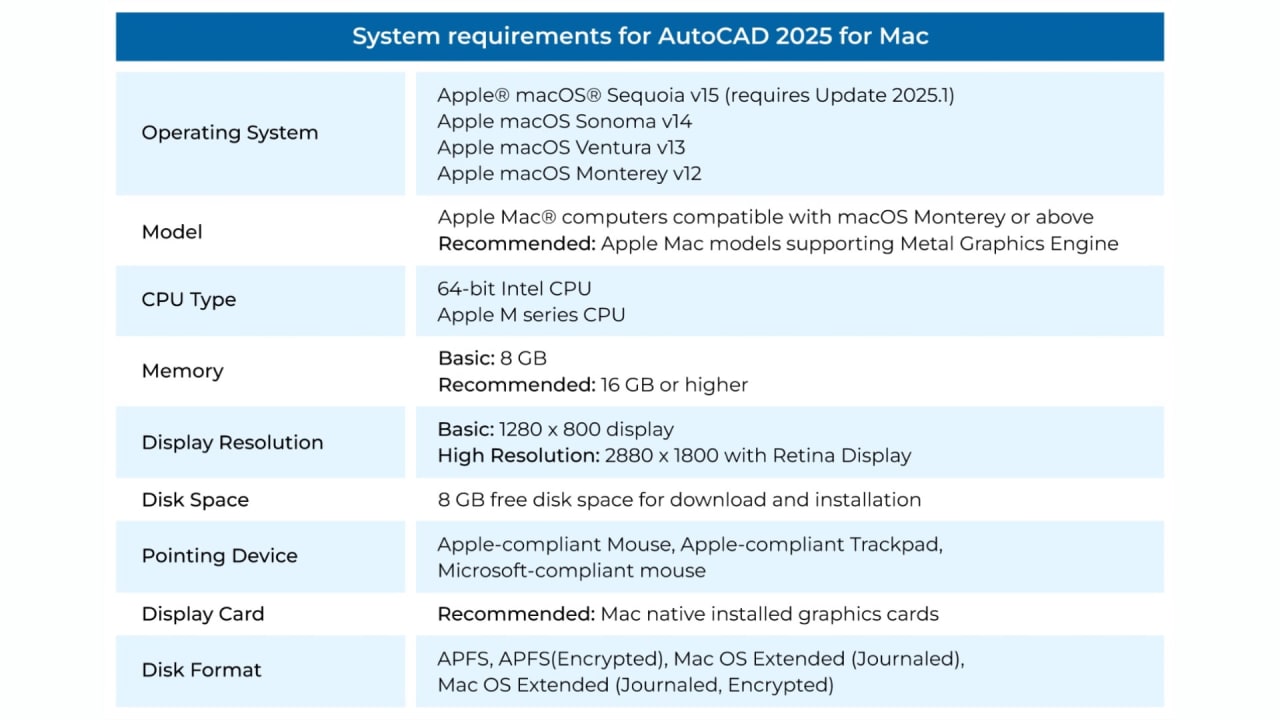
- Can AutoCAD be installed on a Mac?
- AutoCAD does have a Mac version available from Autodesk, but instructions and system requirements differ. Ensure you select the Mac build on the Autodesk download page if installing on macOS. :contentReference[oaicite:1]{index=1}
- Why does AutoCAD installation get stuck or freeze?
- This can happen due to slow internet, insufficient disk space, antivirus interference, or corrupted installer files. Try pausing antivirus software and using a stable internet connection before retrying. :contentReference[oaicite:2]{index=2}
- What should I do if AutoCAD installation fails with an error?
- Common fixes include running the installer as administrator, checking system compatibility, disabling antivirus temporarily, and re‑downloading the installer from the official Autodesk site. :contentReference[oaicite:3]{index=3}
- Can I install multiple versions of AutoCAD on the same computer?
- Yes — AutoCAD supports multiple versions installed side‑by‑side. However, ensure you have enough disk space and follow Autodesk’s installation prompts carefully to avoid conflicts. :contentReference[oaicite:4]{index=4}
- Do I need to uninstall previous AutoCAD versions before installing a new one?
- It’s recommended to uninstall old or unused AutoCAD versions to prevent conflicts, especially if they were installed manually or not removed cleanly. :contentReference[oaicite:5]{index=5}
- What if AutoCAD won’t activate after installation?
- Activation issues may be due to internet connectivity or incorrect account details. Ensure your Autodesk account is verified and online, then sign in again during the activation step.
- Is there a free version of AutoCAD available?
- Students and educators can access a free educational license of AutoCAD from the Autodesk Education Community for learning and academic use.
- How long does AutoCAD take to install?
- Depending on your system speed and internet connection, installation can take between 15–45 minutes. Slow downloads or disk write speeds may increase this time.
- Can AutoCAD run on low-end laptops?
- AutoCAD can run on low-end laptops, but better performance is achieved with SSD storage and 16 GB RAM.
- Is AutoCAD hard for beginners?
- AutoCAD is beginner-friendly when learned step by step, starting with basic commands and proper setup.
Conclusion — Installation is Your First Professional Step
After installation: Set your units to millimetres, enable Ortho and Object Snap, and save a drawing template before opening your first project. These three steps take five minutes and prevent hours of fixing incorrect drawings later.
A correct AutoCAD installation is the foundation of your entire design career. Every floor plan, construction detail, and presentation drawing you will produce as a Pakistani architect or draftsman begins with the software set up properly on your machine.
Follow this guide once, configure it correctly from the start, and AutoCAD will be a reliable and powerful tool that serves your architectural career for years — locally and internationally through freelancing.
Your first floor plan is waiting. The only thing between you and it is a clean AutoCAD installation — and now you have one.
Ready to start drawing? Read our complete AutoCAD for Architecture guide or explore more resources in our articles section.
Written by
Mr. Ali Husnain Hajveri
Mr. Ali Husnain Hajveri brings 7 years of expertise in CAD software, technical drawing, and architectural visualization. His interactive approach helps learners translate concepts into accurate designs.